The 9 Best Apps to Limit Social Media in 2026 (Free and Paid)
The best apps to limit social media in 2026, honestly rated: Screen Time, Opal, one sec, Freedom, Forest, ScreenZen, Brick and more. Find a setup that sticks.
 Andrea Marino10 min read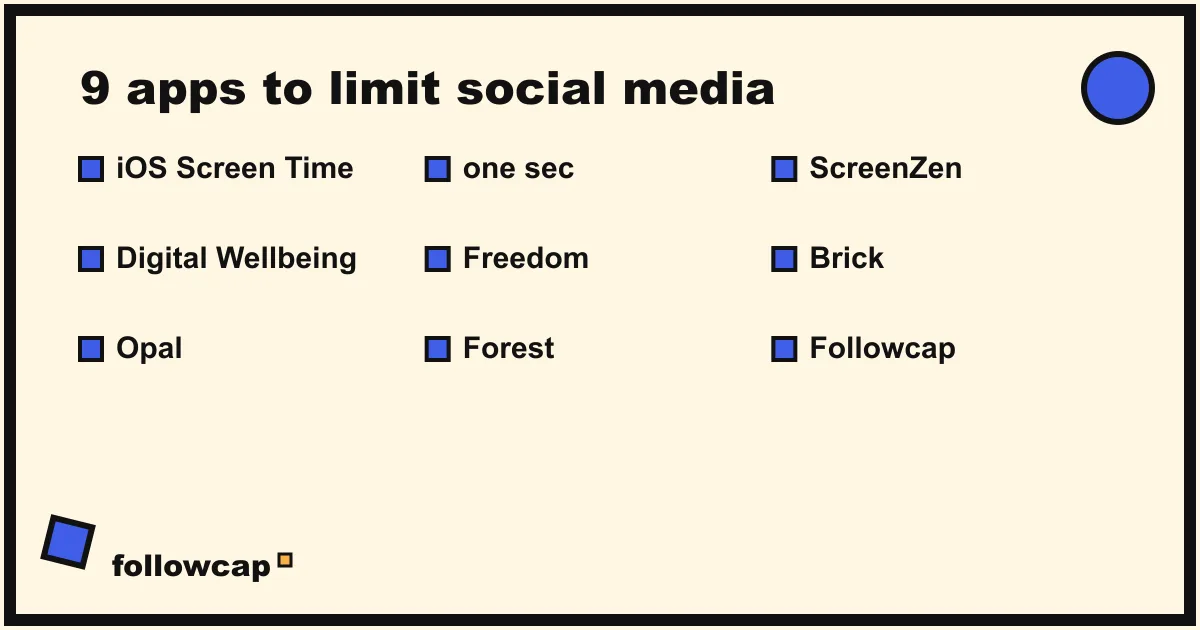
If you have ever tapped “Ignore limit for today” on your own app timer, you know the best apps to limit social media are not the ones with the strictest lock but the ones you keep using after week two. This comparison covers nine options, from the free tools already on your phone to a physical block and a weekly recap, with who each is for, how it works, what is good, and what is not.
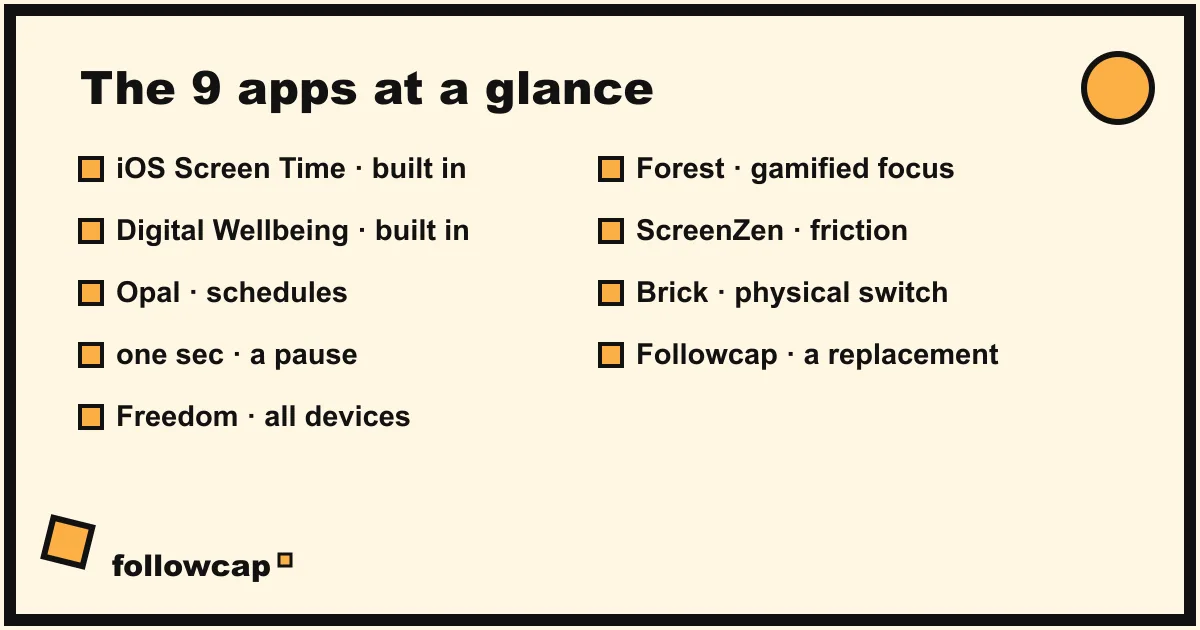
Quick answer: start with the free built-in tools (iOS Screen Time or Android Digital Wellbeing) for limits, add a pause app (one sec or ScreenZen) if you keep skipping them, use Opal, Freedom or Brick for a hard block, and pair any of them with a replacement like a weekly recap so you still see the creators you care about.
How we picked the best apps to limit social media
We judged each app as someone who wants to use social media less, not quit it. Four things mattered:
- Does it survive a weak moment? A limit you can skip with one tap is a reminder, not a limit.
- Does it work where you actually scroll? Phone first, desktop second.
- Does it address the reason you open the app? Blocking treats the symptom; a few tools change why you open the app at all.
- Is the free tier usable? We say where the paid plan is genuinely needed.
Nothing here is a cure. People check their phone about 144 times a day (Reviews.org, 2023), mostly by reflex. The right app interrupts the reflex; what you do in the gap is up to you.
The 9 best apps to limit social media
1. iOS Screen Time (built in, free)
Best for: iPhone users who want to start today without installing anything.
How it works: Screen Time lives in Settings: daily App Limits per app or category, Downtime when only chosen apps work, a separate passcode to lock the settings, and a weekly report of time, pickups and notifications.
What’s good: free, already on your phone, and the weekly report is the easiest way to measure your baseline.
What’s not: the “Ignore limit” button is one tap away. Giving the passcode to a partner helps; most people keep it and skip the limit when it matters.
2. Android Digital Wellbeing (built in, free)
Best for: Android users who want timers plus a built-in bedtime mode.
How it works: Digital Wellbeing sits in Settings on most Android phones. App timers gray out an app when the time is up, Focus mode pauses distracting apps for a block, and Bedtime mode turns the screen grayscale at night.
What’s good: the app timer actually closes the app rather than nagging, and Focus mode on a schedule is a free way to protect your mornings.
What’s not: timers reset at midnight, so late-night scrolling gets a fresh allowance just when you are weakest.
3. Opal
Best for: people who want a stronger block on iPhone with scheduled sessions.
How it works: Opal blocks chosen apps during sessions you schedule or start manually. Stricter sessions cannot be ended early or need a delay to unlock.
What’s good: the stricter modes genuinely hold: a 9 to 12 deep focus block stays closed.
What’s not: the full feature set sits behind a paid plan, and a block can still be worked around with the browser version of a site unless you block that too.
4. one sec
Best for: people who want a pause, not a wall.
How it works: one sec adds a short breathing animation every time you open a chosen app, then asks whether you still want to continue. On iPhone it runs through Shortcuts automations; on Android it is its own setting.
What’s good: it fixes the reflex, which is where most unplanned sessions start. It never locks you out, so there is no “I need it for work” conflict.
What’s not: the free tier covers one app; more need the paid plan. The iPhone setup through Shortcuts is fiddly the first time, and if you decide to scroll, nothing stops you.
5. Freedom
Best for: blocking the same sites and apps on your phone and your computer.
How it works: Freedom runs on Mac, Windows, iOS, Android and as a browser extension. You create block lists, then schedule sessions or start them on demand; Locked mode stops you ending a session early.
What’s good: it is the only tool here that covers the desktop properly, which matters if your scrolling moves to the laptop the moment the phone is locked.
What’s not: it is a paid plan after a small number of free sessions, and setup across several devices takes an evening.
6. Forest
Best for: focus sessions with a little game attached.
How it works: you plant a virtual tree and set a timer. Leave to open something on your block list before it ends and the tree dies. It is a pomodoro timer with consequences.
What’s good: it makes a 25 or 50-minute focus block feel like a commitment you do not want to break. The Android version is free with ads; the iOS version is a one-off purchase.
What’s not: it only helps while a session is running; it does nothing about the 11pm scroll or the quick check in a queue.
7. ScreenZen
Best for: a free pause app with a daily opens budget.
How it works: ScreenZen puts a pause before chosen apps, like one sec, and adds a daily limit on how many times you can open an app, with the wait growing after each open.
What’s good: it is free, covers many apps at once, and the opens budget counts sessions rather than minutes.
What’s not: the setup screens are busy, and like one sec it is friction, not a lock, so a determined scroller gets through.
8. Brick (physical device + app)
Best for: people who have skipped every software limit and want something physical.
How it works: Brick is a small device you keep at home. Tap your phone on it and the apps you chose are blocked until you tap again. The app handles the lists; the tap is what makes it different.
What’s good: the friction is physical. If the Brick is at home and you are out, the apps stay blocked, and getting up to tap feels like a real decision.
What’s not: it is a one-time hardware purchase, emergency unlocks are limited, and Android support came later than iOS.
9. Followcap (a different approach)
Best for: people who open Instagram mainly to keep up with a short list of creators.
How it works: Followcap does not block anything. You choose up to 5, 10 or 20 Instagram creators depending on the plan, and every Sunday you get one email: a 30-second summary of what they posted that week, the three posts you should not miss, a 2 to 3 line recap of every post with its link, and a short “what you can apply this week”. No Instagram login or password is needed. For example, 10 creators post about 58 reels, posts and stories a week, roughly 12 hours of scrolling to keep up with, and the recap takes about 5 minutes to read.
What’s good: it removes the reason you open the app, which no blocker can do. If “I’ll miss what X posted” is what makes you skip a limit, the recap takes that excuse away. It starts at 9 euros a month with a 7-day free trial; see followcap.com or start the trial.
What’s not: it covers Instagram only, and it is not a limiter, so you still need a limit or a pause app for the reflex. If you follow hundreds of accounts for the feel of the feed, a recap of 10 will not replace that.
Blockers vs replacements: why blocking alone fails
Most lists of screen time apps stop at blockers. That misses the reason limits get skipped.
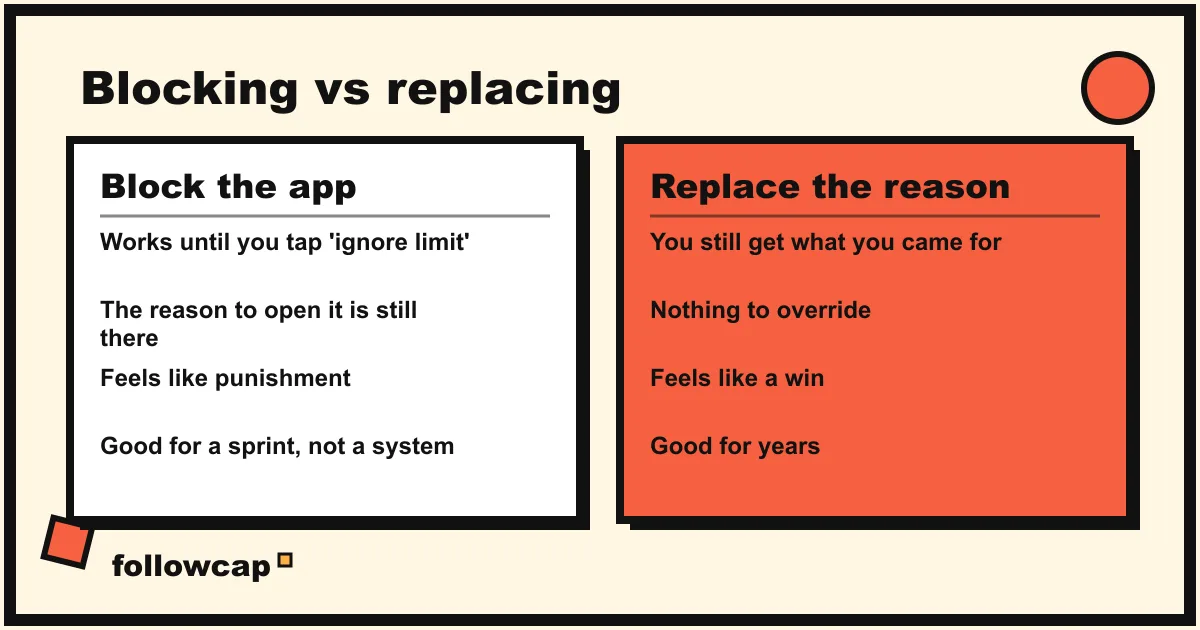
A block works on the “response” part of the habit loop: cue, craving, response, reward. The cue and the craving are untouched, so the craving looks for another door: the browser version, a second device, or the “Ignore limit” button.
A replacement works on the cue and the reward instead. If what you crave is “did my favorite creators post something useful”, a Sunday recap satisfies that, so the cue loses its power. The limit protects the reflex, the replacement protects the reason, and each covers the other’s weakness.
| Blockers (Screen Time, Opal, Freedom, Brick) | Pause apps (one sec, ScreenZen) | Replacements (newsletters, recaps) | |
|---|---|---|---|
| What it changes | Whether you can open the app | Whether you open it by reflex | Why you wanted to open it |
| Strength | Holds in the moment | Catches unplanned opens | Removes the excuse to skip a limit |
| Weakness | Craving finds another door | Determined scroller gets through | Does not stop the reflex |
| Best paired with | A replacement | A replacement | A limit or a pause |
Worldwide, people spend about 2 hours 21 minutes a day on social media (DataReportal, Digital 2025). A blocker can cut that; a replacement keeps it cut after the novelty wears off. Our guide on how to stop doomscrolling goes deeper into the trigger side.
A simple setup that combines two of them
You do not need five apps. This setup takes 20 minutes and covers both the reflex and the reason.
Step 1: a limit or a pause for the reflex
- On iPhone: set a Screen Time App Limit of about half your current daily use for your top two social apps, and add one sec to the one you open most by reflex.
- On Android: set a Digital Wellbeing timer for the same two apps, turn on Bedtime mode with grayscale, and add ScreenZen for an opens budget.
- If you have already skipped both for a month, that is your signal to try Brick or Opal’s strict mode instead.
Step 2: a replacement for the reason
- List the accounts you would actually miss. Most people land at 5 to 15.
- For writers and YouTubers, subscribe to their newsletter or add them to an RSS reader.
- For Instagram creators, set up a weekly recap (app 9 above, or a manual Sunday check-in of a Favorites list) so you see their posts once a week in one place.
Step 3: measure once a week
Check your weekly report on Sunday, note one number, and adjust: if you are skipping the limit, add friction; if you are missing specific people, fix the replacement. Our list of ways to spend less time on your phone has more small changes to layer on.
FAQ
What is the best free app to limit social media?
The built-in tools: Screen Time on iPhone and Digital Wellbeing on Android. They are free, already installed, and give you the weekly report you need to measure progress. If you keep skipping their limits, ScreenZen is the strongest free add-on because it counts opens, not just minutes.
Do app blockers actually work?
In the moment, yes. Over weeks, the craving that made you open the app finds another route, or you turn the block off. Blockers last longer when paired with something that removes the reason to open the app, like a newsletter or a weekly recap.
Is there an app that limits Instagram specifically?
All the blockers and pause apps here can target Instagram alone. To keep seeing certain Instagram creators without the feed, a weekly recap (app 9 above) is the only tool in this list that works on that side; pair it with a limit for the reflex.
How strict should my app limits be?
Strict enough to be noticed, loose enough to be kept: about half your current daily use, held for two weeks, then tightened. If you skip it every day, lower the number or add friction.
The bottom line
The best apps to limit social media are the ones that match your failure mode. If you open apps by reflex, a pause app like one sec or ScreenZen helps most. If you cannot stop once you start, Opal, Freedom or Brick holds the line. And if you skip every limit because you do not want to miss a few specific people, a replacement like Followcap, which turns a week of Instagram posts from your chosen creators into one Sunday email, takes that excuse away. Start with the free built-in tools, add one pause or block, add one replacement, and measure once a week.