How to Repost on Instagram in 2026 (Posts, Reels and Stories)
How to repost on Instagram in 2026: the native Repost button for posts and Reels, sharing to your story, remix and Add Yours, what you cannot repost, and credit.
 Andrea Marino11 min read
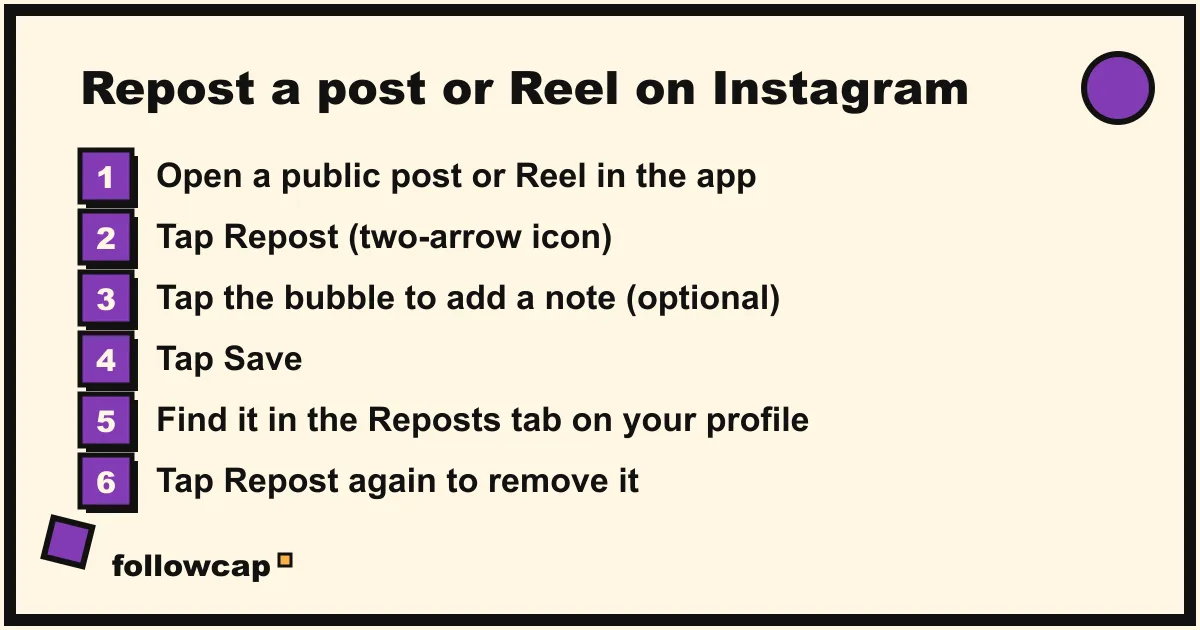
To repost on Instagram, tap Repost under any public post or Reel, add an optional note in the bubble next to your profile picture, and tap Save. The repost appears in a dedicated Reposts tab on your profile and may be shown to your followers in their feeds, credited to the original poster. For a 24-hour share instead, tap Share → Add to story.
Quick answer: since August 2025 Instagram has a built-in Repost button for public posts and Reels. It works in the iPhone, iPad and Android apps, not on a computer, and only when the creator allows reposts. Tap Repost again to remove one. To share to your story, tap the paper-plane Share icon → Add to story → Next → Share. Stories can be reposted only if you were mentioned or the account is public and allows it. No repost app is needed.
What changed: Instagram’s native Repost feature
Until 2025 there was no repost button for the feed, which is why older guides still tell you to screenshot a post or install an app. That changed on August 6, 2025, when Meta’s newsroom announced reposts: “With reposts, you can repost public reels and feed posts.” Reposts “will be recommended to your friends’ and followers’ feeds”, they “are credited to the original poster”, and they collect in a separate tab on your profile.
Instagram’s help center, checked in late 2026, adds the details that matter: the feature “may not be available to everyone”, it is not available on computers, you can only repost content “if the original creator allows reposts of their content”, and “you cannot repost a repost.”
The four ways to share someone’s content, as of 2026:
| Method | What it creates | Where it shows | Lasts | Credit |
|---|---|---|---|---|
| Repost | A copy of a post or Reel in your Reposts tab | Your profile tab, possibly followers’ feeds | Until you remove it | Automatic, to the original poster |
| Share to story | A story card linking to the post or Reel | Your story | 24 hours (longer in Highlights) | Automatic, viewers can tap through |
| Remix | A new Reel that includes their video or photo | Your Reels and profile | Permanent | “Remix with [username]” label |
| Add Yours | Your own story or Reel added to their prompt | Your story or Reels, under their sticker | Story: 24 hours; Reel: permanent | “Started by” credit on the prompt |
How to repost a post or Reel to your profile
The steps are from Instagram’s help page “Repost a reel or a post on Instagram” as of late 2026, and are the same on iPhone, iPad and Android.
- In the app, open a public post or Reel by its original creator (not someone else’s repost).
- Tap Repost, the two-arrow icon next to the comment and share icons.
- To add a note, tap the bubble by your profile picture at the bottom left and type.
- Tap Save.
- The post or Reel now appears in the Reposts section of your profile. Your followers “may be able to see your repost if they come across that piece of content”, which means recommended, not guaranteed.
One surprise: comments on your repost do not appear under the post. The help page says they “will appear as direct messages to you”.
To find, remove or bulk delete reposts: they live in the Reposts tab on your profile. To remove one, open it and tap Repost again. To delete several, go to ☰ Menu → Your activity → Reposts, select them and tap Delete. Removing a repost does nothing to the original post.
How to repost a post or Reel to your story
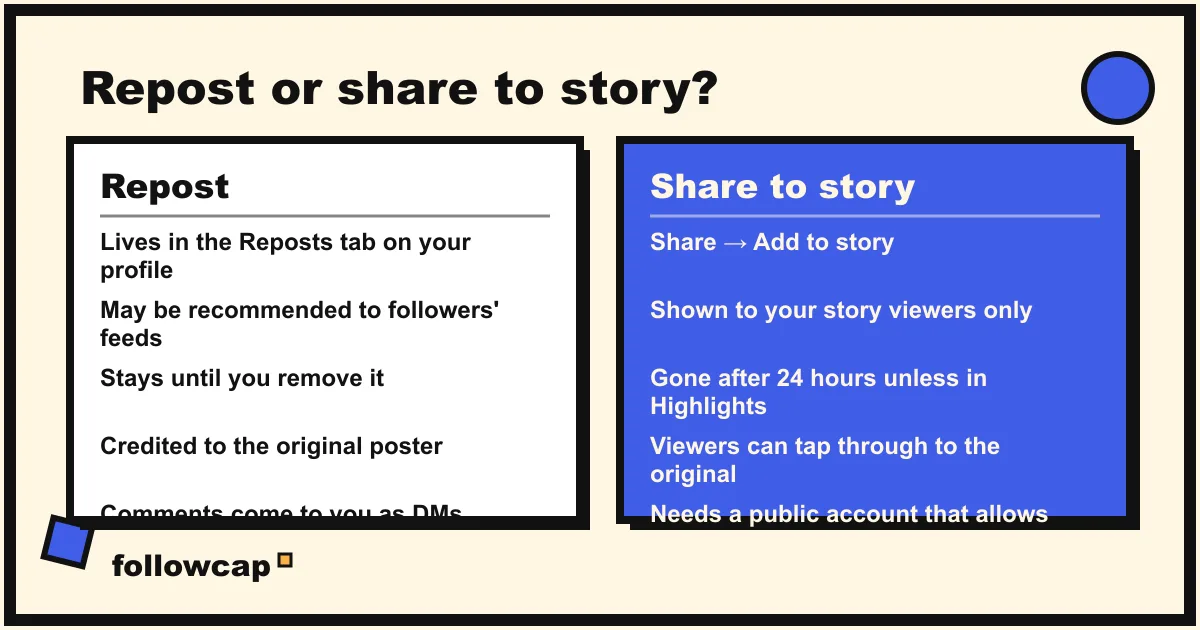
The story route is right when you want a 24-hour mention rather than a permanent entry on your profile. From Instagram’s help page “Share someone’s post from feed to your Instagram story”:
- Tap Share (the paper-plane icon) below the photo, video or Reel.
- Tap Add to story.
- Edit the card if you like, then tap Next in the bottom right.
- Tap Share, choosing Your story or Close Friends.
Two conditions from the same page: the account must be public and must have allowed resharing of their posts, and “sharing posts from Feed to Stories isn’t available to everyone”. When it works, “anyone who views it can see who originally posted it and can view the original account”, so credit is automatic.
How to repost someone’s story
A story can be shared to yours in two situations, both from Instagram’s help pages.
You were mentioned in it. Instagram sends you a message with the story and an Add to story button. Tap it, edit, tap Next, then Share. It is the only way to repost a story from a private account: the mention is the permission.
The account is public and allows story resharing. Open the story, tap Share in the bottom right, then Add to story, Next and Share. Public accounts allow it by default, and the help page notes that “all teen accounts have story-to-story sharing turned off by default”. The setting is Settings → Sharing and reuse → Stories to stories: Everyone, Followers you follow back or Off.
Neither applies. Then Instagram offers no way to repost that story, by the creator’s choice. A screenshot is a copy, not a share, and is only acceptable with the creator’s explicit permission and a visible @mention.
Remix, templates and Add Yours: building on a post instead of copying it
Not every “repost” is a repost. If you want to react to a Reel, use its audio, or answer a prompt, Instagram has features for that, and they credit the creator automatically.
- Remix builds a new Reel that includes someone else’s video or photo. From the help page: tap the three-dot menu at the bottom of the Reel (or the top of a post), tap Remix, pick a Layout, and record. The result shows “Remix with [original creator’s username]” at the bottom. You cannot remix a remix or a video whose creator turned remixing off.
- Templates reuse a Reel’s clip timing and audio with your own clips, via Use template.
- Add Yours is a story and Reel sticker. Tap Add yours on the sticker to add your own story or Reel to the prompt; the “Started by” credit names the creator.
All three depend on the creator’s reuse setting. Instagram’s “Reuse of media” help page says a public account’s reels, feed videos and photos can be reused “in features like remix, sequence, templates and stickers”, and a private account’s cannot.
Credit and permission: the etiquette
The native features solve credit for you: reposts, story shares, remixes and Add Yours all name the creator and link back. Instagram’s help page on original content says it directly: to curate other accounts’ reels and posts without material edits, “we recommend reposting to your followers or sharing the content to your stories”, because both ensure “the original creator receives credit and reach”. The same page says a watermark does not count as an edit, and that you are “responsible for obtaining any necessary permissions before using someone else’s work”.
Where you still need judgment:
- A repost is a public endorsement. Followers may see it with your name on it, so treat the button like a quote, not a bookmark. To keep something privately, use Save; see how to see saved posts on Instagram.
- Ask before re-uploading. Once you download or screenshot content and post it as your own upload, you are the publisher. Get a written yes and @mention them. Never crop out a handle or watermark; every repost has a Report option (long-press the profile picture at the bottom left).
What you cannot repost, and how to stop others reposting you
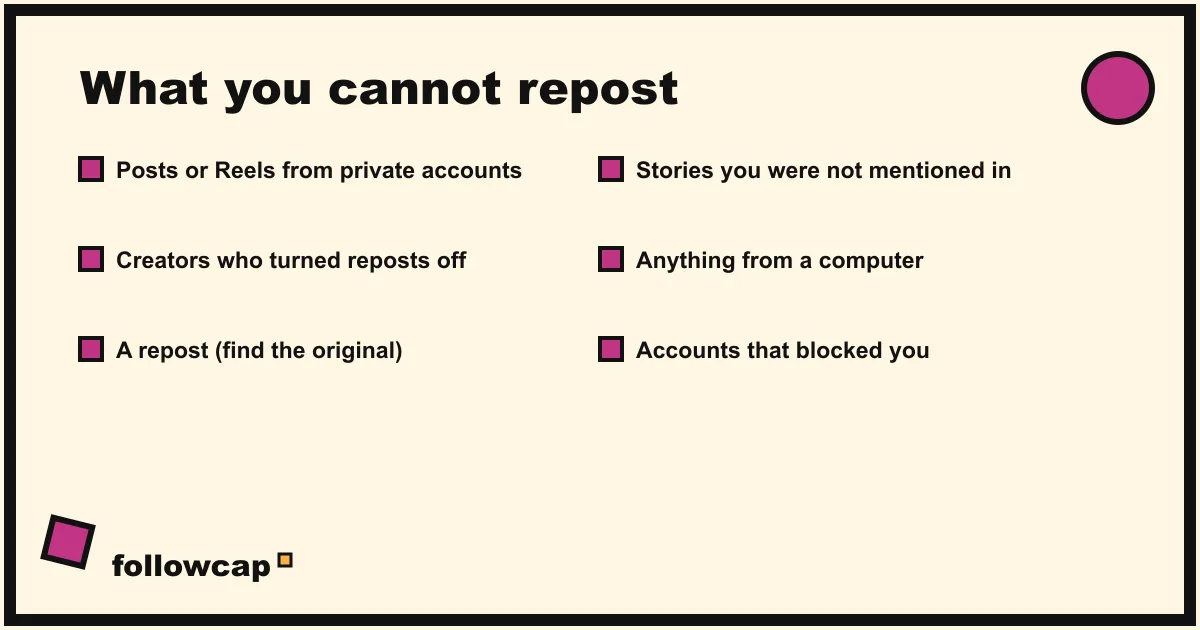
You cannot repost: posts and Reels from private accounts; content from a creator who turned reposts off; a repost (tap through to the original creator); stories you were not mentioned in, unless the account is public and allows story-to-story sharing; and anything from a computer, since reposting, remix and Add Yours are app-only.
The reverse controls are all in one place: Profile → ☰ Menu → Sharing and reuse below How others can interact with you.
- Reposts on posts and reels: removes the Repost button from your content.
- Posts and reels to stories: stops people adding your posts to their stories.
- Stories to stories: Everyone, Followers you follow back or Off.
- Remix and reuse controls, account-wide or per post. Turning reuse off does not remove remixes made before the change unless you delete the original.
Why you should skip repost apps
Search this query and a third of the results are apps: “Repost for Instagram”, “Reposta” and dozens of lookalikes. They date from the years when Instagram had no repost button, and as of 2026 there are two reasons to leave them alone.
First, the native button does the job better: automatic credit, a link to the original, removal in one tap, and the creator’s consent built in. An app can only download the media and re-upload it under your name.
Second, any app that asks for your Instagram username and password is a security problem. Instagram’s help center says such apps “can gain complete access to your account”, that it “may remove any likes or other engagement that they generated”, and that accounts using them “may notice that certain parts of their Instagram account are limited”. The same goes for the “unfollower” tools next to them in the results, as how to see who unfollowed you on Instagram explains.
The one legitimate reason to want a tool is curation: a brand or community account that reposts the best work in its niche every week needs to find it first, and that is a reading problem. Followcap is our product, so read this as the maker’s description: you type the usernames of public creator or business accounts, with no Instagram login, and every Sunday you get one email with a 30-second summary, the three posts not to miss, a two to three line recap of the best posts from each account with their links, and “what you can apply this week”. Three accounts are free with no card; Premium (€9 a month, 10 accounts) adds weekly numbers per account and an archive page; Business Pro (€29 a month, 50 accounts, 3 team users) adds a monitoring dashboard and content ideas. It does not repost anything and cannot: it is weekly, not real time; it covers public creator and business accounts only; it has no Stories, reach, saves, views or audience data; and paid plans are paid after the 7-day trial, with a 30-day money-back guarantee. You read the recap and tap Repost in the app yourself. More ways to do the finding are in Instagram content ideas from the accounts you follow.
What to do if the Repost button is missing
- No Repost icon on any post. Update the app and restart it. The help page says the feature “may not be available to everyone”; there is no setting to turn it on.
- Repost icon on some posts but not this one. The creator turned off Reposts on posts and reels, the account is private, or the post is itself a repost. Tap the creator’s name and try from the original.
- You reposted but followers did not see it. Expected. Reposts are recommended to feeds, not pushed to everyone. The Reposts tab is the only place a repost is guaranteed to appear.
FAQ
Can you repost on Instagram without the app?
No. Instagram’s help page states that reposting “isn’t available on computers”, and the same applies to sharing a post to your story, remix and Add Yours. On a computer you can only copy the post’s link.
Does Instagram notify someone when you repost their post?
Instagram’s help pages do not say whether the creator is notified of a repost, and we could not verify it. What is certain: the repost is credited to them, anyone can tap through to the original, and the creator can report a repost. For Reels shared to stories, Instagram says you cannot see who reshared or where.
How do you repost a story you are not tagged in?
Only if the account is public and allows story resharing: open the story, tap Share in the bottom right, then Add to story. If that option is missing, the creator has not allowed it, and the only remaining route is a screenshot with their explicit permission and an @mention.
Is reposting against Instagram’s rules?
No. Reposting, sharing to your story, remixing and Add Yours are Instagram features, allowed whenever the creator’s settings permit them, and Instagram’s original-content page recommends them over re-uploading. Re-uploading someone’s content as your own post is where you need permission.
Related reading
- How the Instagram Algorithm Works in 2026 (Feed, Stories, Reels, Explore)
- Best Time to Post on Instagram in 2026 (and How to Find Yours)
- How Often Should You Post on Instagram? What the Accounts in Your Niche Actually Do
The bottom line
As of 2026, reposting on Instagram is built in: tap Repost under any public post or Reel, add a note if you want, tap Save, and it appears in the Reposts tab on your profile, credited to the original poster. Use Share → Add to story for a 24-hour version, Remix or Add Yours to build on a post, and the mention route for stories. You cannot repost private content, a repost, or anything from a computer, and creators can switch reposting off under Sharing and reuse. Skip the repost apps, especially any that wants your password; a weekly recap of the accounts you curate from, like Followcap, which we make, covers the part Instagram does not: finding the posts worth reposting.