How to Mute Someone on Instagram (and What They Can See)
How to mute someone on Instagram: posts, stories, notes, messages and calls with the exact 2026 taps, how to unmute, mute vs restrict vs block, and whether they find out.
 Andrea Marino11 min read
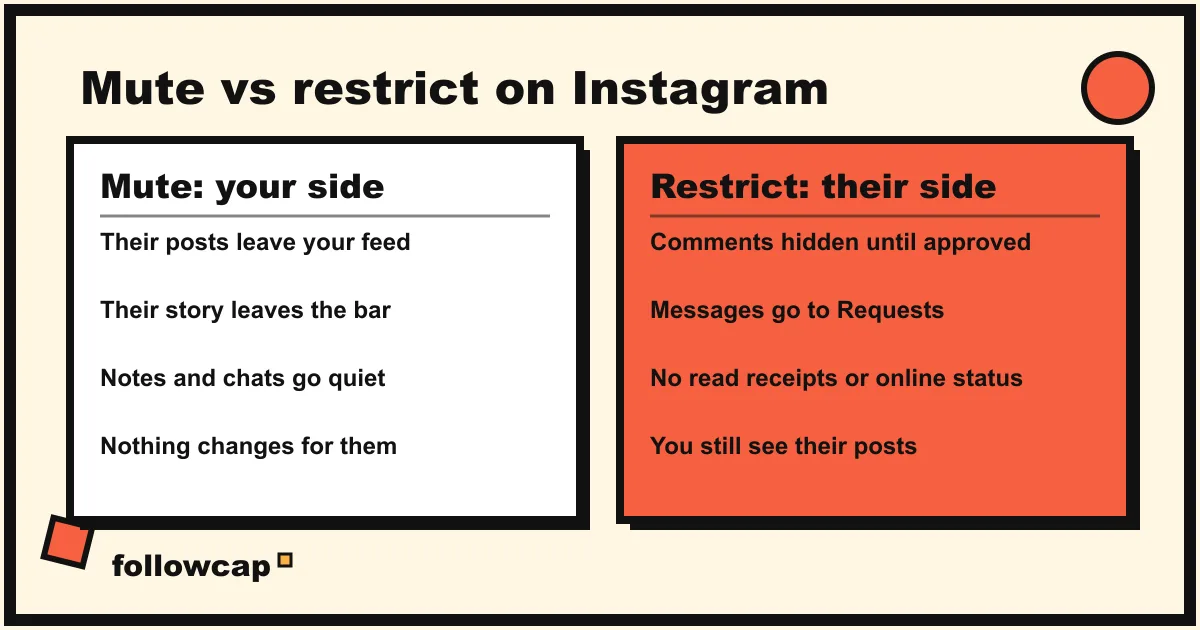
To mute someone on Instagram, open their profile, tap Following under their bio, tap Mute, and switch on Posts, Stories or both. Their content leaves your feed and story bar, you keep following them, and Instagram does not tell them. Notes and messages are muted separately, from your inbox.
Quick answer: Profile → Following → Mute → toggle Posts and/or Stories. Stories only: press and hold their picture in the story bar → Mute → Mute stories. Notes: Messages → press and hold their note → Mute notes. Messages and calls: open the chat → tap their name → Mute → toggle Mute messages or Mute calls. Reverse any toggle to unmute.
What does muting someone on Instagram do?
Muting is a filter on your own feed. Instagram’s help page puts it simply: if you do not want to see someone’s posts in your feed, their stories at the top of your feed or the messages they send you, you can mute them, and “Instagram won’t let them know you muted them.”
Nothing changes on their side. You still follow each other, and they can still see your posts and stories, like, comment, message you and tag you. You can still open their profile and see everything they post; it simply stops arriving on its own. Unfollowing removes you as a follower; blocking removes you entirely.
Instagram has four separate mutes, and switching one on does not switch on the others:
| Mute | What stops | Where you set it |
|---|---|---|
| Posts | Their posts and reels in your feed | Profile → Following → Mute, or the ⋯ menu on a post |
| Stories | Their story in the bar at the top of feed | Story bar (press and hold) or Profile → Following → Mute |
| Notes | Their notes above your inbox | Messages → press and hold the note |
| Messages and calls | Notifications from that chat and their calls | The chat → their name → Mute |
Muting posts or stories does not touch notes, and Instagram’s help page says so explicitly. If someone’s notes are the part that bothers you, mute those on their own.
How to mute someone’s posts
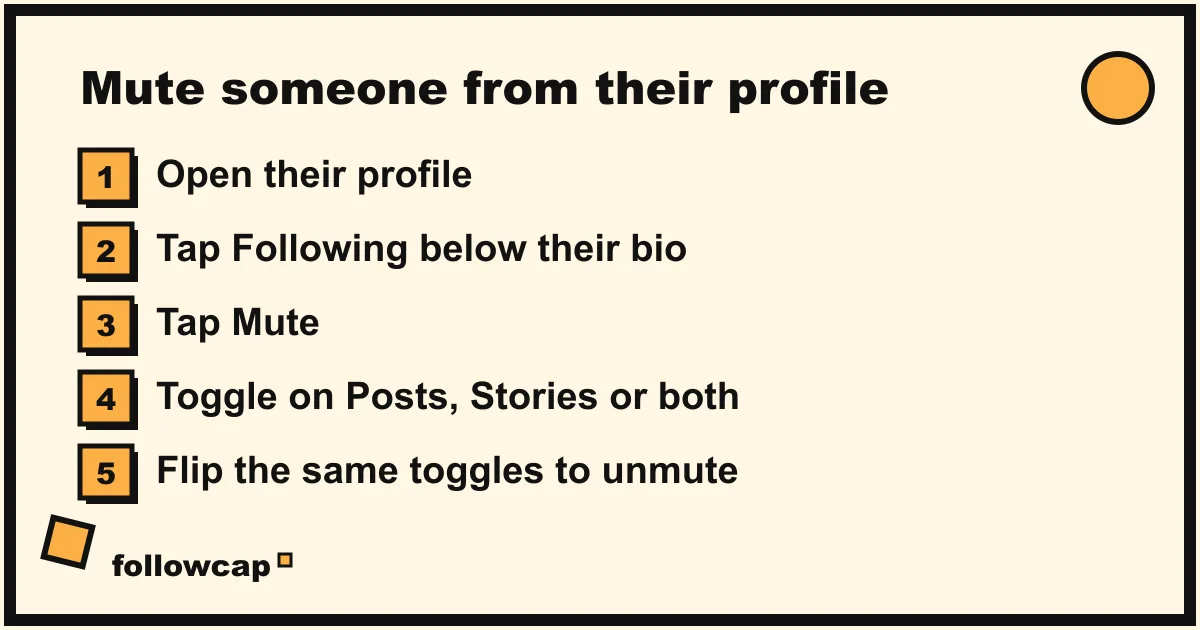
From their profile
- Open their profile: tap their username on a post or story, or search it.
- Tap Following below their profile info.
- Tap Mute.
- Toggle on Posts. Toggle on Stories too if you want both gone.
- Swipe the sheet down. The change saves on its own.
This is the method that works for anyone you follow, whether or not they have posted recently.
From a post in your feed
- Tap ⋯ (Options) in the corner of their post.
- Tap Hide.
- Tap Mute [username], then Mute Posts or Mute Posts and Story.
Note that the feed route offers “posts” or “posts and story”. There is no “story only” choice from a post. For that, use the story bar or the profile.
Both paths are confirmed on Instagram’s help pages for the iPhone and Android apps as of late 2026. On instagram.com the help pages only document muting messages, so use the phone for posts.
How to mute someone’s stories
If you only want their story out of the bar at the top of your feed:
- At the top of feed, press and hold their profile picture.
- Tap Mute, then Mute stories.
Muted stories move to the end of the story bar with no colored ring, so you can still open them deliberately. You keep seeing their posts in feed and the notes they share.
To unmute: scroll to the end of the story bar, press and hold their picture and tap Unmute. Instagram’s help page gives a second route: open their profile, tap their profile picture to open their story, tap Options in the top right, then Unmute story.
How to mute someone’s notes
Notes are the short text bubbles above your inbox, and they have their own mute.
- Tap Messages (the paper plane) at the top of feed.
- Press and hold the person’s note.
- Tap Mute notes, then confirm.
To unmute: open their profile, tap Following, tap Mute, and switch off the toggle next to Notes. Instagram’s help page states that people are not notified when you mute their notes.
How to mute someone’s messages and calls
This mute silences notifications from one chat. It does not stop the person messaging you, and they still see whether you have read their messages.
- Tap Messages at the top of feed.
- Open the chat with the person.
- Tap their name at the top of the chat.
- Tap Mute.
- Toggle on Mute messages, Mute calls, or both. Some versions of the app also offer a duration (an hour, eight hours, a week, or until you change it).
On a computer the same option is under Information in the top right of the chat. If the problem is unwanted messages rather than too many notifications, muting is the wrong tool; restricting or blocking is, covered below.
How to unmute someone on Instagram
Every mute is a toggle, so unmuting is the same path in reverse.
- Posts or stories: their profile → Following → Mute → switch off Posts or Stories.
- Stories from the bar: scroll to the end of the story bar, press and hold, Unmute.
- Notes: their profile → Following → Mute → switch off Notes.
- Messages or calls: the chat → their name → Mute → switch off.
Unmuting is also silent. Their posts simply start appearing again, and the person is not told either way.
How to see who you have muted
The reliable check is per person: open their profile, tap Following, tap Mute and look at which toggles are on.
There is also a list: Profile → ☰ → What you see → Muted accounts, with an unmute toggle per entry. We could not find this screen on Instagram’s help pages as of late 2026, and it has moved in Settings before (older guides put it under Privacy → Connections), so if it is not under What you see, type “muted” in the search box at the top of the menu. There is no unmute-all button and no limit on how many accounts you can mute.
Does the person know you muted them?
No. Instagram’s help pages say it directly for posts and stories (“Instagram won’t let them know you muted them”) and for notes (“People won’t be notified when you mute their notes”). There is no notification, no label, and no setting anywhere in the app that shows someone who has muted them.
What a muted person can still do is the more useful question, because muting changes nothing on their side.
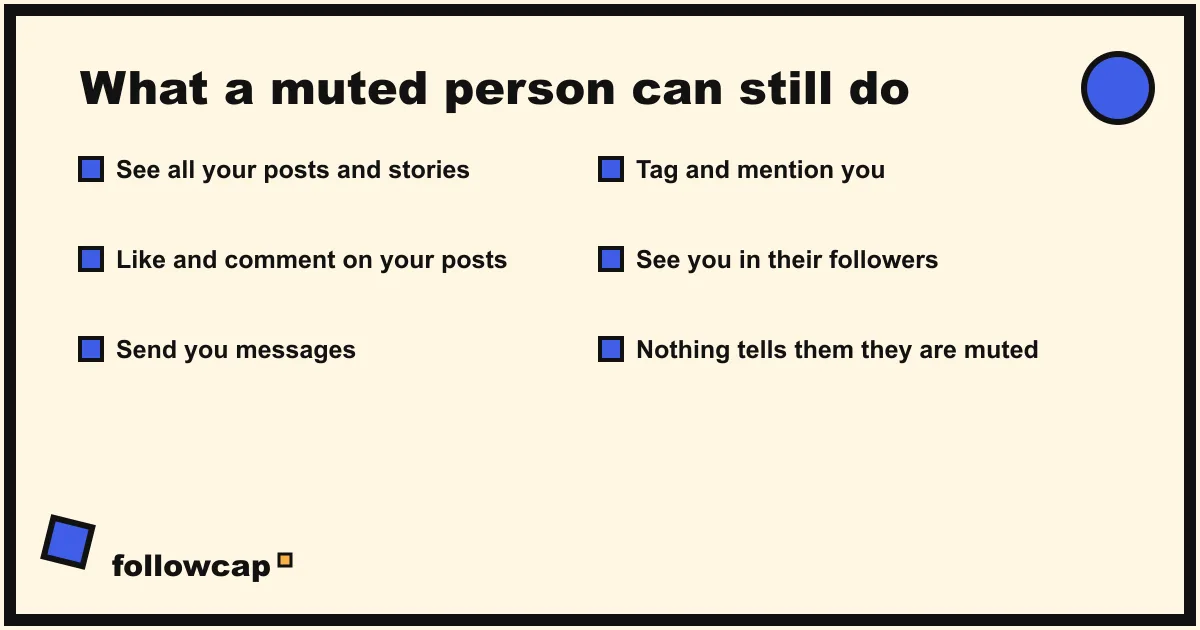
- See all of your posts and stories, exactly as before.
- Like and comment on your posts, and you still get those notifications.
- Send you messages. Even with the chat muted, messages arrive and read receipts work.
- Tag and mention you. Instagram said at launch, in 2018, that you still get notified when a muted account tags you or comments on your post.
- See you in their followers list, with the Following button intact.
Could they guess? Only weakly: you stop appearing in their story viewers and stop liking their posts, and both have many other causes. That is also why no “see who muted you” app can work; there is no data to read.
Mute vs restrict vs block vs unfollow
People search for “mute” when they want one of four different things. Here is what each does, taken from Instagram’s help pages.
| Mute | Restrict | Block | Unfollow | |
|---|---|---|---|---|
| Who it changes things for | You | Them | Both | Both |
| Their posts in your feed | Hidden | Still shown | Gone | Gone |
| Your posts in their feed | Still shown | Still shown | Gone (they cannot find your profile) | Still shown if public |
| Their comments on your posts | Normal | Hidden from others until you tap See comment and Approve; no notifications | Removed, and not restored on unblock | Normal |
| Their messages | Arrive; notifications optional | Move to Message Requests; no read receipts, no online status for them | Not delivered, even after unblock | Arrive |
| Follow relationship | Unchanged | Unchanged | Removed | You stop following |
| Are they told | No | No | No | No, but Follow replaces Following |
Use mute when their content is the problem: too many posts, a topic you are tired of. Use restrict when their behavior toward you is the problem: comments you do not want public, messages you want out of your inbox without a confrontation. To restrict, open their profile → ⋯ → Restrict. Use block when you want no contact at all. Unfollow when you simply do not need them; nobody is notified, but a curious person can check their followers list. Mute is the only one of the four that changes nothing for the other person, which makes it the right default for friends, family and colleagues.
What to do if mute does not work
- Their posts still appear. Check that the Posts toggle is on, not only Stories, and that you muted the right account; people with a second account need both muted.
- Their story still appears. Stories have their own toggle. Press and hold their picture in the bar, or switch on Stories under Following → Mute.
- Their notes still appear. Notes need their own mute, from the inbox.
- You still see them in suggestions. Mute covers their own posts and stories. A suggested reel they appear in is a recommendation issue; see how to turn off suggested posts on Instagram.
- The toggle is missing. Update the app.
Mute the noise without losing the accounts you need
Muting has one side effect creators and marketers notice first: you mute a competitor or a creator you study because their fifteen posts a week were burying everyone else, and a month later you have no idea what they published.
Here Followcap is our product, so read this as the maker’s description. You type the usernames of the public creator or business accounts you want to keep up with (three free, no Instagram login or password needed), mute them on Instagram if you like, and every Sunday one email arrives with a 30-second summary, the three posts not to miss, a two to three line recap of the best posts from each account with their links, and a line on what you can apply this week. Premium (€9 a month, up to 10 accounts) adds weekly numbers per account (posts, likes, comments, best post, follower growth) and an archive page. The limits are real: it is weekly, not real time; public creator and business accounts only, so it is no use for a private friend’s account; no reach, saves, views or audience data; and paid after the 7-day trial, with a 30-day money-back. It is a way to keep a clean feed and still see what the accounts you watch professionally are doing. If that is the reason you were about to mute someone, you can set it up with three accounts.
For a calmer feed in general, pair muting with the Following feed and Favorites; for the broader habit, see how to stop doomscrolling.
FAQ
Will someone know if I mute them on Instagram?
No. Instagram’s help pages state that the person is not notified when you mute their posts, stories or notes, and there is no indicator on their side. Muting changes only what you see.
Can I mute someone’s stories but still see their posts?
Yes. Press and hold their picture in the story bar and tap Mute stories, or open their profile, tap Following, tap Mute and switch on Stories only. Their posts keep appearing in your feed.
What is the difference between mute and restrict on Instagram?
Mute hides their content from you and changes nothing for them. Restrict leaves your feed alone and instead limits them: their comments on your posts are hidden until you approve them, their messages go to Message Requests, and they cannot see your online status or read receipts. Neither sends a notification.
Does muting someone affect the Instagram algorithm?
Only in the sense that you stop interacting with their posts. Muting is not a ranking signal in itself, but less engagement with an account over time usually means Instagram shows you less of similar content. If you unmute, their posts return and ranking adjusts as you interact again.
Related reading
- Instagram Not Showing Posts From People You Follow? 5 Fixes
- How to See Your Reels Watch History on Instagram (2026)
- Can You See Who Views Your Instagram Profile? (2026 Answer)
The bottom line
Muting is the quietest control Instagram offers: profile → Following → Mute → toggle Posts or Stories, with separate mutes for notes (press and hold the note) and for messages and calls (the chat → their name → Mute). The person is never told, keeps every ability they had, and can be unmuted with the same toggles. Reach for restrict when their behavior is the problem and block when you want no contact. If you are muting accounts you still need to follow for work, a weekly recap such as Followcap, which we make, keeps their posts arriving by email, with the limit that it is weekly and covers public accounts only.