How to Turn Off Suggested Posts on Instagram (What Works in 2026)
How to turn off suggested posts on Instagram: snooze them for 30 days, use the Following feed, reset suggestions, filter words. What works and what does not, as of 2026.
 Andrea Marino11 min read
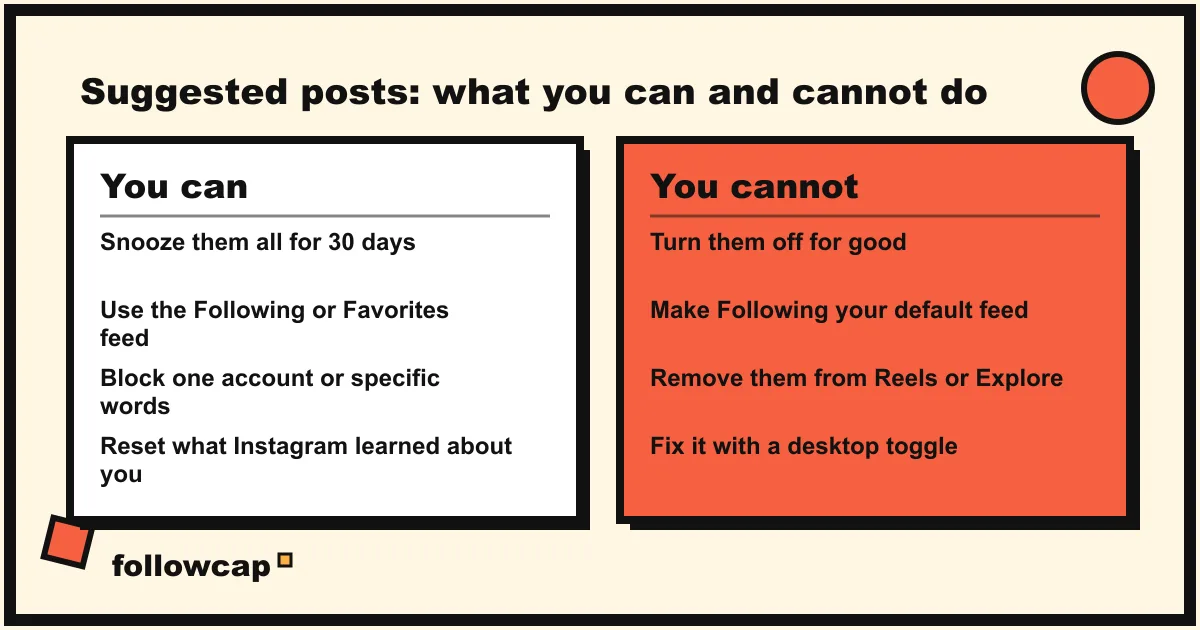
You cannot turn off suggested posts on Instagram for good. As of late 2026 there is no setting that removes them from the main feed. What you can do is snooze them for 30 days, switch to the Following feed, which has none, reset what Instagram has learned about you, and block specific accounts and words. This guide covers every control, with the exact taps, and says plainly what no setting can do.
Quick answer: on any post labelled “Suggested for you”, tap the three dots above it, then Not interested, then Snooze. That pauses all suggested posts in your feed for 30 days. For a feed with no suggested posts at all, tap the Instagram logo (or “For you”) at the top of the home screen and choose Following.
Can you turn off suggested posts on Instagram permanently?
No. When suggested posts arrived in 2020 they sat at the end of the feed, after the “You’re All Caught Up” notice, and press coverage at the time quoted Instagram’s own FAQ saying they could not be hidden. In 2021 Instagram mixed them into the feed itself, and in Adam Mosseri’s May 2023 ranking explainer the feed is defined as posts from accounts you follow plus recommended content from accounts Instagram thinks you will enjoy, plus ads.
Instagram’s help page “Hide suggested posts in your Instagram Feed” lists five things you can do with a suggested post. None is an off switch. So the honest frame is dose, not existence: you decide how many suggested posts you see, for how long, and from whom. Here is the full set of controls, as of late 2026.
| Control | What it does | How long it lasts |
|---|---|---|
| Snooze | Pauses all suggested posts in your feed | 30 days, then you repeat it |
| Following feed | Only accounts you follow, newest first, no suggestions | Until you reopen the app, which returns you to the main feed |
| Favorites feed | Only up to 50 accounts you picked, no suggestions | Same as Following |
| Not interested | Fewer posts like that one | Ongoing, gradual |
| Don’t suggest posts from [name] | No more suggestions from that account | Ongoing |
| Don’t suggest posts with certain words | Hides suggested posts whose caption or hashtags match your list | Ongoing, up to 24 hours to apply |
| Reset suggested content | Wipes what Instagram learned about your interests | One-off, cannot be undone |
| Sensitive content control | Less borderline content in recommendations | Ongoing |
How do you snooze suggested posts for 30 days?
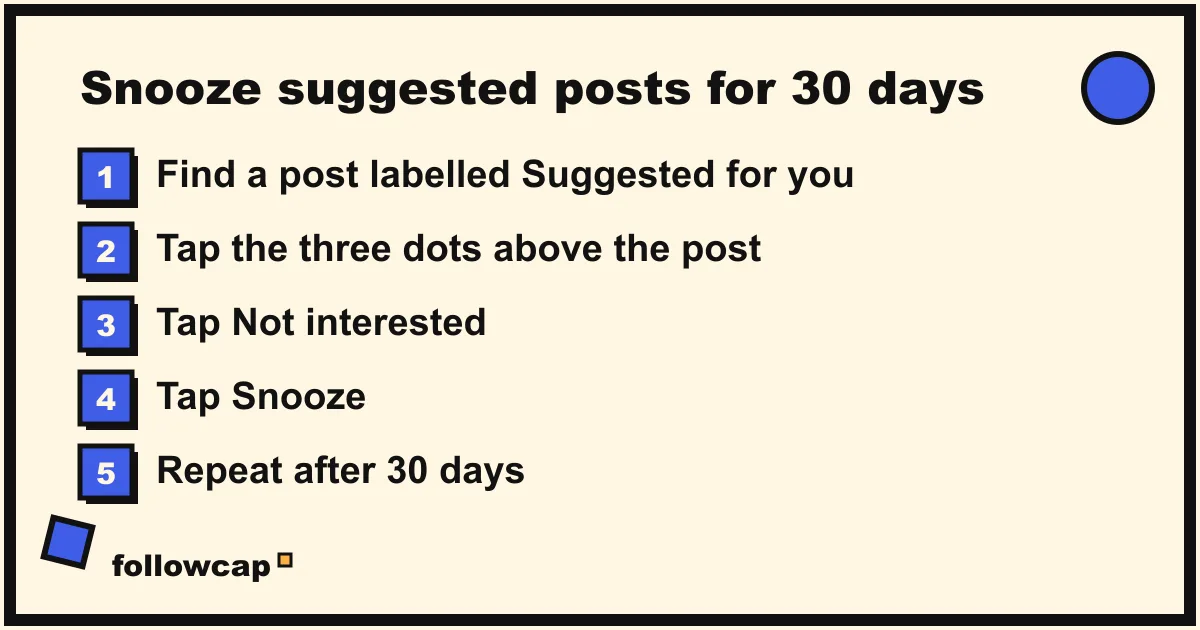
Snooze is the closest thing Instagram offers to an off switch. The path below is the one on Instagram’s help page as of late 2026; the labels in your app may differ slightly by version.
- Scroll the home feed until you reach a post labelled Suggested for you (or “Because you liked a post from…”, “Because you follow…”).
- Tap the three dots (Options) above the post, top right.
- Tap Not interested.
- Tap Snooze. Instagram’s wording: pause all suggested posts in your Feed for 30 days.
Older guides tell you to tap an X in the corner of a suggested post. On some app versions that X opens the same sheet; if you do not see it, the three dots always work.
Three limits. Snooze applies to the feed only; the Reels tab and Explore keep working as before. It ends silently after 30 days, so set a reminder for day 29. And it does not change what Instagram has learned about you; when it ends, the same kind of suggestions come back.
How do you use the Following feed to see no suggested posts at all?
The Following feed is the only view of Instagram with zero suggested posts, and it is chronological. Instagram’s help page describes it as posts from people you follow, newer at the top, “for a non-personalized experience”. Mosseri’s 2023 explainer adds that it covers the last 30 days of posts.
- On the home screen, tap the Instagram wordmark at the top left (on some versions it reads For you). A small arrow next to it shows it is a menu.
- Tap Following.
- Scroll. To go back, tap the same menu and choose For you.
The catch: Instagram does not let you make Following the default. Close the app, reopen it, and you are back on the ranked feed with its suggestions. As of late 2026 no setting changes this. Why it resets, and the workarounds, are in how to see your Instagram feed in chronological order.
Favorites is the second suggestion-free view: up to 50 accounts you pick, ranked higher in the main feed and shown alone, in order, in the Favorites feed. Add an account from its profile: tap Following, then Add to favorites. Instagram says it never shares who is on your list. The full picture is in Instagram Favorites: how it works.
How do you get rid of suggested posts from one account or one topic?
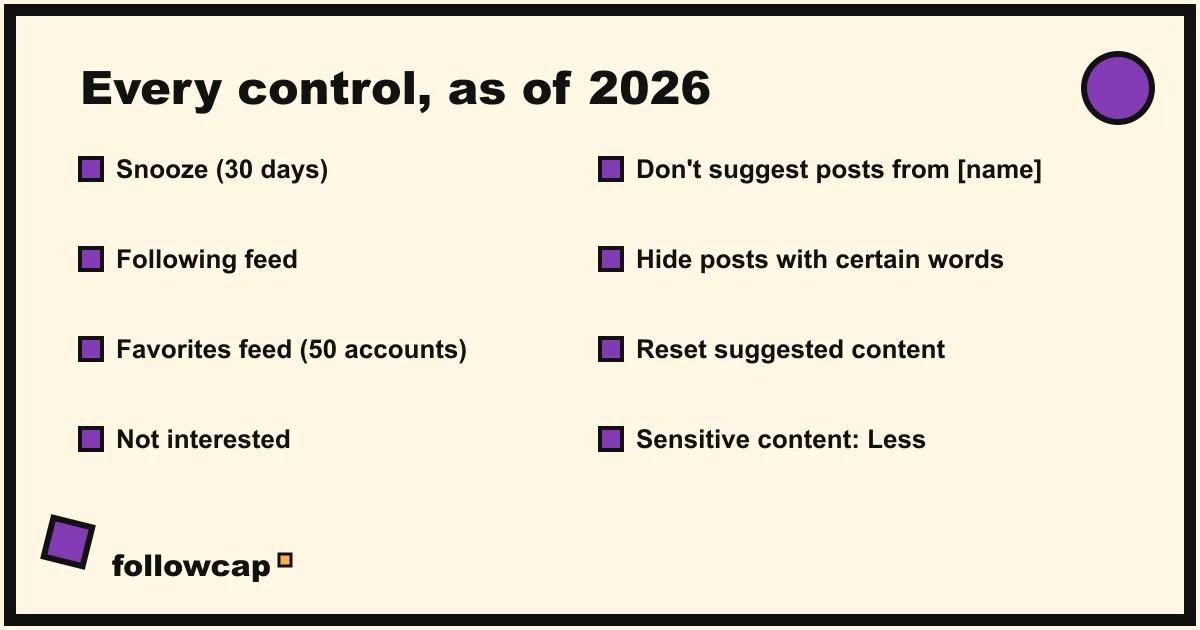
The Not interested sheet has three options that outlast a snooze.
Don’t suggest posts from [name]. Tap the three dots above the post, Not interested, then Don’t suggest posts from [name]. That account stops appearing as a suggestion. It is the right move for the one meme page that shows up every day.
Don’t suggest posts with certain words. Same sheet, then Don’t suggest posts with certain words. Type a word, phrase or emoji; you can add several at once separated by commas; tap Done. Instagram says it can take up to 24 hours to apply. To edit the list later: Profile → ☰ Menu → Content preferences → Specific words and phrases. Four limits from the help page: a word must match a hashtag exactly to hide a post by hashtag; the filter never hides posts from accounts you follow; it does not apply on instagram.com; and it checks captions and hashtags only, not comments.
Not interested on its own. Tapping it removes that post and, in Instagram’s words, your response is reflected in future suggested posts. It is a slow, cumulative signal, not a switch.
Instagram is also testing a Tune your algorithm page (Reels or Explore → the icon in the corner, or Settings → Content preferences) where you add topics you want more or less of. The help page says it is still in testing, not available everywhere, and that one change applies across Feed, Reels and Explore. If you have it, the “less of” list is the most precise filter Instagram has offered.
Should you reset your suggested content?
Instagram added a full reset in late 2024, first as a test, now on its help pages for Android and iPhone. It clears what the recommendation system has learned from your activity and starts again.
- Profile → ☰ Menu (top right).
- Below What you see, tap Content preferences.
- Tap Reset suggested content.
- Tap Next. Instagram offers to let you review who you follow (and your ad topics) before the reset.
- Tap Reset suggested content to confirm.
Use it when the feed has drifted somewhere you did not choose: after lending your phone, or after one topic took over. Three caveats from Instagram itself: it cannot be undone; it does not change who you follow or the ads you see; and your suggestions become personalized again as soon as you like, share and interact. The feed feels bland for a few days, then rebuilds around whatever you touch. It is a reset, not a removal.
What about suggested reels and Explore?
The Reels tab and Explore cannot be turned off; recommendations are what they are made of. You can shape them: on a reel, tap the three dots (bottom right) → Not interested, with the same word and account options as in the feed. The reset above covers Reels and Explore too.
The other lever is Sensitive content control: Profile → ☰ Menu → Content preferences → Sensitive content → select Less → Confirm. Instagram says it affects Explore, Search, Reels, comments, suggested accounts, hashtag pages and recommendations in your feed. It only touches content that is allowed but not eligible for recommendation (borderline violence, suggestive images, regulated products), so it will not remove ordinary suggested posts; it makes the ones you get tamer. The ranking signals behind each surface are in how the Instagram algorithm works.
Which “fixes” do not work?
Several widely shared tips do nothing for suggested posts.
- “Show account suggestions on profiles” (desktop only). This toggle, under Edit profile on instagram.com, controls whether similar accounts are suggested on your profile and whether you appear on others’. It has no effect on your feed, whatever some guides say.
- Turning off “Show activity status”. That hides your online status in messages. It is unrelated to recommendations.
- Deleting and reinstalling the app. Suggestions are tied to your account, not your phone.
- “Feed cleaner” apps that ask for your Instagram password. They cannot reach a setting Instagram does not expose, they break Instagram’s terms, and a password in a stranger’s hands is a bad trade for a cleaner feed.
- Marking every suggested post Not interested. It trains the system but never empties it.
What to do if snooze is missing or the suggestions come back
- No Snooze option in the sheet. Update the app. Instagram rolls feed controls out by region and version, and the sheet on instagram.com is shorter, so check on your phone.
- Suggested posts came back. The 30 days are up. Snooze again from any suggested post.
- Posts from people you follow are missing, not just buried. That is a different problem, covered in Instagram not showing posts from people you follow.
A steadier option: get the accounts you care about by email
If you only open Instagram for a few creators or businesses, you can skip the feed entirely. Here we have to be transparent: Followcap is our product, so read this as the maker’s description. You type the usernames of public creator or business accounts, no Instagram login or password needed, and every Sunday you get one email with a 30-second summary, the three posts not to miss, a two or three line recap of the best posts from each account with their links, and what you can apply this week. Three accounts are free, no card. Premium (€9 a month, up to 10 accounts) adds weekly numbers per account (posts, likes, comments, best post, follower growth) and a personal archive page. The limits: it is weekly, not real time; it covers public creator and business accounts only, not private friends or stories; it shows no reach, saves, views or audience data; and paid plans are paid after the 7-day trial, with a 30-day money-back. If that fits, you can start with three accounts. Other ways to keep up without the feed are in how to keep up with Instagram without the app.
FAQ
Why is my Instagram feed only suggested posts?
Usually because you have scrolled past everything new from the accounts you follow, and suggestions fill the rest. The 2023 ranking explainer says Instagram tries not to show too many suggested posts in a row, but it does not cap the total. Switching to Following shows you only what remains from the last 30 days, which is often very little.
How do I snooze suggested posts on Instagram?
Tap the three dots above any suggested post, tap Not interested, then Snooze. All suggested posts in your feed pause for 30 days. Reels and Explore are not affected, and you have to snooze again when the period ends.
Does “Not interested” actually do anything?
Yes, but slowly. Instagram says your response is reflected in future suggested posts. Each tap nudges the mix away from that kind of content; it never switches suggestions off. For a faster effect, use “Don’t suggest posts from [name]” on repeat offenders and the word filter for topics.
Can I turn off suggested posts on Instagram on a computer?
No, and the controls are thinner on the web. The Following and Favorites views exist on instagram.com, so use those. The custom word filter does not apply on the website, according to Instagram’s help page.
Why do suggested posts come back after 30 days?
Because snooze is a pause, not a setting. The recommendation system keeps running and resumes when the pause ends. Repeat the snooze, and use the word and account filters so the posts that return are closer to what you want.
Does resetting suggested content delete my followers or my posts?
No. Instagram’s help page says the reset does not change who you follow or the ads you see, and it does not delete your data. It only clears the signals used to pick recommendations. Your posts, followers, saves and messages stay as they are.
Related reading
- How to Mute Someone on Instagram (and What They Can See)
- Instagram Story Viewers Order: What It Means (2026)
- Can You See Who Views Your Instagram Profile? (2026 Answer)
The bottom line
As of late 2026, there is no way to turn off suggested posts on Instagram permanently. Snooze buys you 30 clean days at a time, the Following and Favorites feeds have no suggestions but reset when you reopen the app, and the word, account and reset controls shape what comes back. Use them together: snooze today, filter the worst accounts and words, reset if the feed has drifted, and repeat the snooze every month. If you only open Instagram for a few accounts, a weekly email recap such as Followcap, which we make, lets you skip the feed altogether, with the trade-off that it is weekly and covers public accounts only.