Instagram Favorites: How It Works and How to Use It (2026)
Instagram Favorites explained: what the list does to your feed, the 50-account limit, whether people know, how to add and remove accounts, and what it cannot do.
 Andrea Marino11 min read
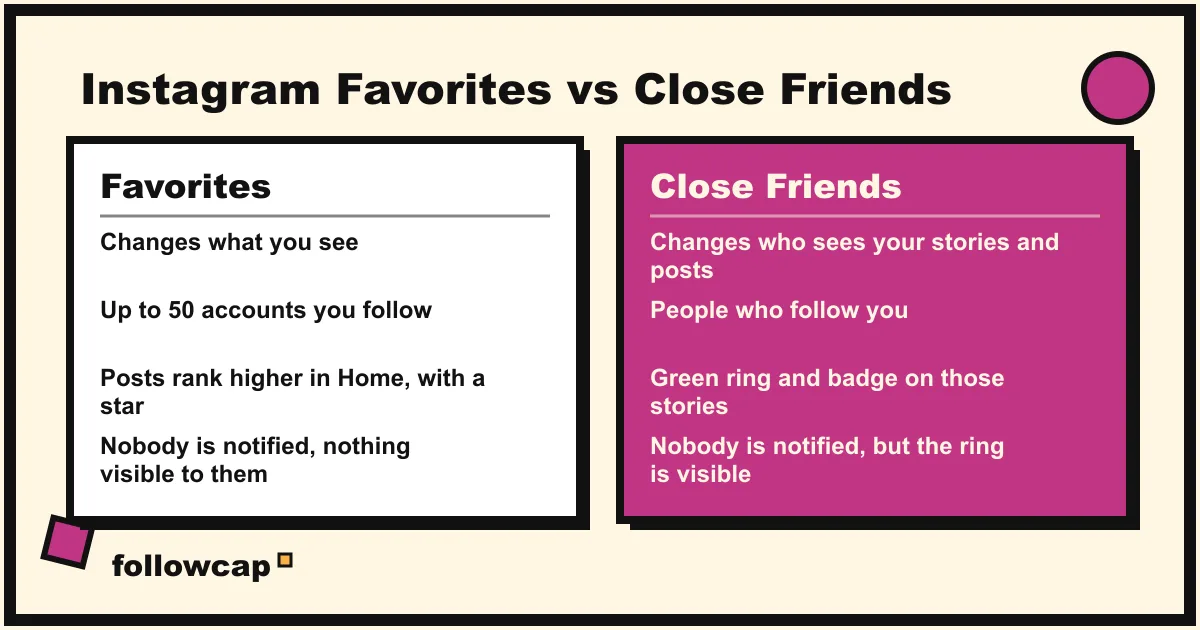
Instagram Favorites is a private list of up to 50 accounts you follow. Their new posts rank higher in your Home feed, marked with a star, and you get a separate Favorites feed that shows only them in chronological order. The accounts are not notified. It changes what you see, never who sees your posts.
Quick answer: tap Instagram at the top left of the home feed → Favorites → the list icon at the top right → search a username → Add. Up to 50 accounts. Their posts move up in Home with a star icon and fill the Favorites feed newest first. Nobody is told, and removing someone does not unfollow them. Favorites is not available on the website.
What does Instagram Favorites actually do?
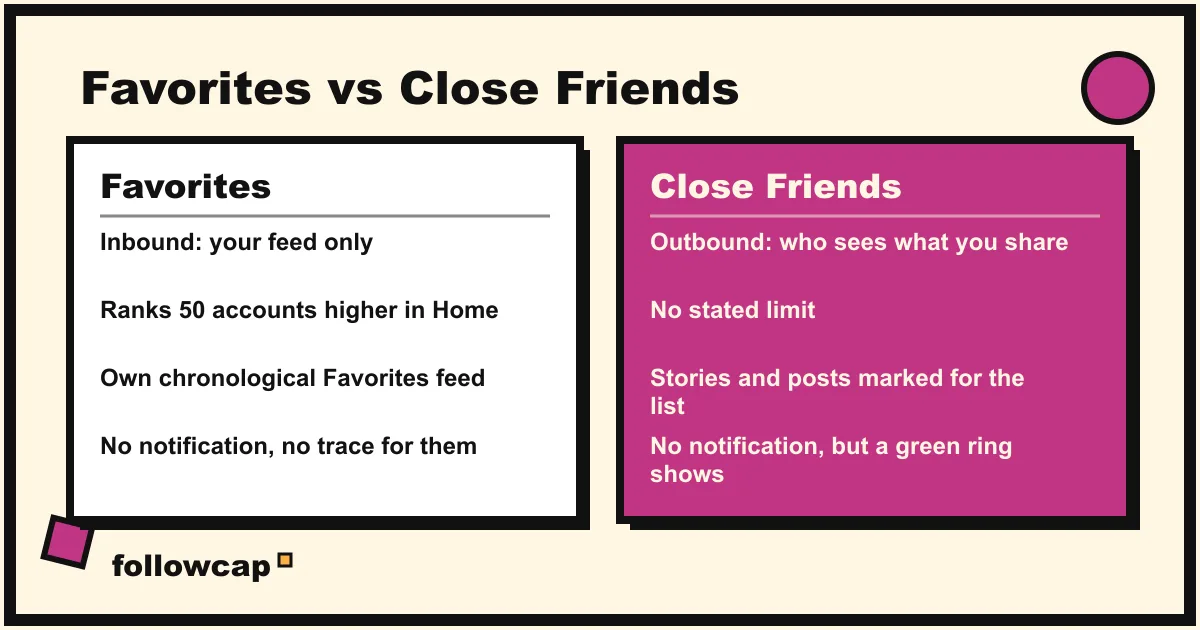
Favorites does two things, and both are on your side of the screen.
1. It changes the ranking of your Home feed. Instagram’s help page on the feature, checked in late 2026, says it in one line: “You can make photos and videos people share on Instagram appear higher in your feed when you add their accounts to favorites.” The help center’s article on how feed order is decided lists “your favorites” as one of the signals its ranking models use, next to your activity, the post’s own engagement and your past interactions with the poster. A favorited account’s post shows a small star next to the username when it appears in Home.
2. It gives you a separate Favorites feed. Tap the Instagram label at the top left of Home and choose Favorites, and you get a feed with only those accounts, newest post first, no suggested posts. Adam Mosseri’s announcement when the feature launched in March 2022 said “Both Favorites and Following will show you posts in chronological order.” The Favorites feed and the wider Instagram chronological feed work the same way; Favorites is just the shorter list.
That is the whole feature. It is often confused with Close Friends, which does the opposite job:
| Favorites | Close Friends | |
|---|---|---|
| What it changes | What you see: ranking and a dedicated feed | Who sees what you share to Close Friends |
| Direction | Inbound, your feed only | Outbound, your stories and posts |
| Limit | 50 accounts | No stated limit |
| Does the other person know? | No notification, nothing visible to them | No notification, but they see a green ring and badge on your Close Friends stories |
| Who can be on it | Accounts you follow | People who follow you |
| Where to manage it | Instagram logo → Favorites → list icon | Profile → ☰ → Settings and activity → Close Friends |
If you want certain people to see less of you, Favorites will not help; look at Close Friends, Restrict or Block instead. If you want to see more of certain people, Favorites is the tool.
How many accounts can you add to Instagram Favorites?
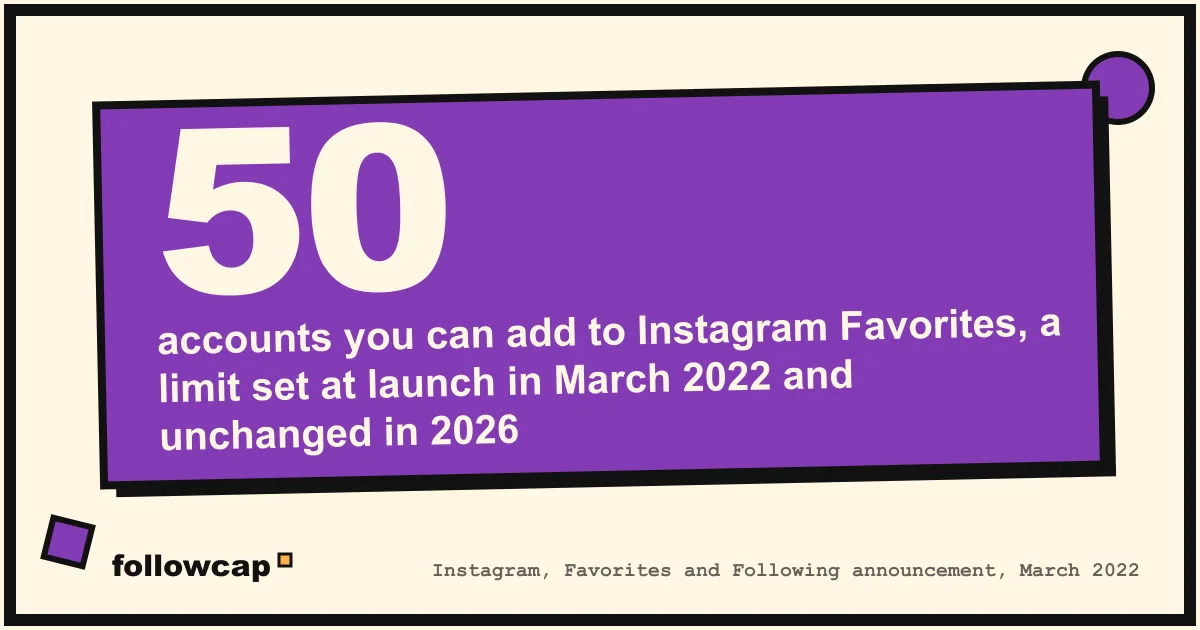
Fifty. The limit was stated in Instagram’s launch announcement in March 2022 (“You can add up to 50 accounts to your list”) and has not changed as of late 2026. There is no published limit on how often you can edit the list.
A useful way to fill it: friends and family first, then the 10 to 20 creators whose posts you actually open, then stop. The point of the list is contrast with the rest of your follows; a full list that mirrors your Home feed gives you nothing.
Do people know when you add them to Favorites?
No. Instagram’s announcement is explicit: “people are not notified when they are added or removed.” There is no push notification, no message, no badge on their side and no list anywhere in the app that shows who has favorited an account. The star icon appears only in your own Home feed, next to posts from accounts on your list, and only you see it.
The reverse is also true: you cannot see who has added you to their Favorites, and there is no count of it. Any app or website that claims to show “who favorited you” is guessing or asking for your login, and as with every third-party tracker that promises to reveal someone’s activity, that is a bad trade for a number Instagram does not expose.
How to add accounts to Instagram Favorites
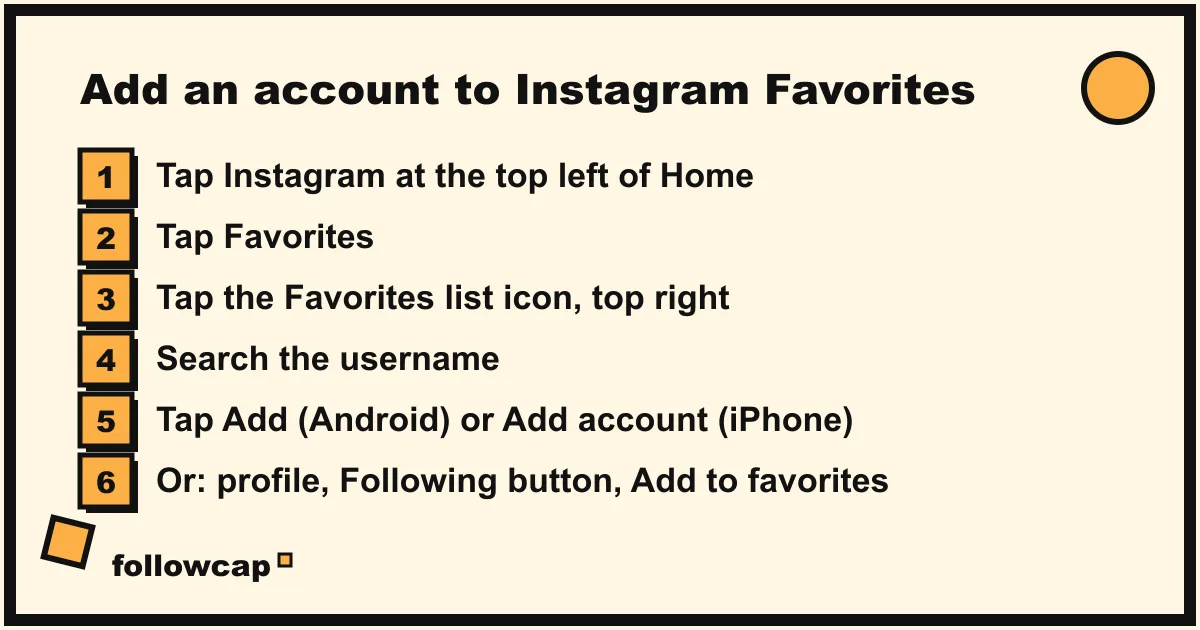
Favorites is managed in the iPhone, iPad and Android apps. Instagram’s help page states that the feature “isn’t available on computers.” The exact labels below come from that help page as of late 2026; Android says Add, iPhone says Add account, and the rest is the same.
From the feed (the official path):
- Open the Home tab and tap Instagram at the top left. On some accounts the header reads For you; tap that instead.
- Tap Favorites.
- Tap the Favorites list icon at the top right of the Favorites feed. The first time, Instagram may show a page of suggested accounts; you can tap Remove next to any of them, or Remove all to start from nothing.
- Tap Search at the top and type a username.
- Tap Add (Android) or Add account (iPhone) next to the account. Repeat up to 50 times.
- If a Confirm favorites button appears at the bottom, tap it.
From a post in your feed: when a post from someone already on your list appears in Home, tap the star (labelled Favorite in the help center) above the post, then Manage favorites to open the same list.
From a profile: on many current versions you can open the account’s profile, tap the Following button under the bio and choose Add to favorites from the sheet that appears. This shortcut is widely reported and we have used it ourselves, but it is not written up on Instagram’s help pages, so if your sheet does not show it, use the feed path above.
One condition: you must already follow the account. Favorites are picked from your following list.
How to remove accounts from Favorites
The same list handles removals.
- Tap Instagram → Favorites → the list icon at the top right.
- Tap Remove next to the account.
- To clear everything, tap Remove all above the list, then confirm.
Or, from a favorited account’s profile, tap Following and choose Remove from favorites where the sheet offers it.
Instagram’s help page adds the line worth remembering: “removing people from your favorites does not unfollow these accounts.” Removal is silent, exactly like adding.
What Instagram Favorites does not do
Most disappointment with the feature comes from expecting something it never promised.
- It is not a notification. Favorites changes ranking; it does not alert you when someone posts. For the two or three accounts where you want to know within the hour, use per-account post notifications, explained in how to get notified when someone posts on Instagram.
- It does not guarantee you see every post in Home. Favorites raises their posts; it does not pin them. Home is still ranked, still mixes in suggested posts and ads, and still has a limited number of slots per session. The Favorites feed is where completeness lives, and it only works while you are looking at it.
- It does not stick. Like Following, the Favorites feed is not a default. Close the app and reopen it and you are back in Home, logo menu waiting. Instagram has said since 2022 that it will not default people into a chronological feed, and repeated the position in 2026.
- It does not cover Stories or the web. The Stories tray keeps its own ranking in every feed, and the list cannot be viewed or edited on instagram.com.
- It does not affect what the other person sees. No ranking change on their side, no visibility change for your posts.
- It does not replace unfollowing. If an account is noise, Favorites for the others is a patch; muting or unfollowing is the fix. See how to mute someone on Instagram.
When Favorites is worth using, and when it is not
Worth it if you follow a few hundred accounts and twenty of them matter. The Favorites feed turns a daily scroll through everything into a two-minute check of the people you chose, and the star in Home catches the ones you would otherwise miss. In our own routine it was the best fix inside the app for the complaint in why Instagram is not showing posts from people you follow.
Not enough if your real goal is to keep up with a short list of creators or businesses without opening the app, or without relying on remembering the extra tap. Favorites needs you to show up, in the app, on the right day. A weekly digest outside Instagram does not.
That second case is why we built Followcap, so read this as the maker’s description. You type the usernames of public creator or business accounts, with no Instagram login, and every Sunday you get one email with a 30-second summary, the three posts not to miss, a two to three line recap of the best posts from each account with their links, and a short “what you can apply this week.” Three accounts are free with no card. Premium (€9 a month, up to 10 accounts) adds weekly numbers per account (posts, likes, comments, best post, follower growth) and a personal archive page; Business Pro (€29 a month, 50 accounts, 3 team users) adds a monitoring dashboard with alerts and a monthly PDF report. The limits: it is weekly, not real time; it only covers public creator and business accounts, so it is useless for private friends and family, which is exactly where Favorites shines; it has no Stories, reach, saves, views or audience data; and paid plans are paid after the 7-day trial, with a 30-day money-back. A sensible split is Favorites for people, a Sunday email for creators and brands. More options for the second half are in how to keep up with Instagram without the app.
What to do if Favorites is not working
- No Favorites option in the logo menu. Update the app in the App Store or Google Play, force close it, reopen. The feature has been on every account since March 2022, so this is almost always a version issue.
- The Favorites feed is empty. The list has nobody in it. Tap the list icon at the top right, search and add.
- Cannot add a particular account. You must follow them first; Favorites are chosen from your following list.
- “Add” is greyed out or disappears. You have reached 50. Remove someone to make room.
- No star on their posts in Home. The star shows only on posts from accounts on your list, and only when the post actually reaches your Home feed. If it never does, open the Favorites feed, where every post from the list appears.
- Favorites keeps switching back to Home. Expected after reopening the app or leaving it in the background. There is no setting to lock it.
FAQ
Does Instagram notify someone when you add them to Favorites?
No. Instagram’s launch announcement states that people are not notified when they are added to or removed from a Favorites list, and nothing in the app shows them that it happened. The star icon is visible only in your own feed.
Can you see who has you as a Favorite on Instagram?
No. There is no list, count or notification of who has favorited you, and no legitimate third-party way to find out. Services that claim otherwise are either guessing or asking for your password.
What is the difference between Favorites and Close Friends on Instagram?
Favorites changes what you see: up to 50 accounts rank higher in your Home feed and get their own chronological feed. Close Friends changes who sees what you share: a list of people who can view the stories and posts you mark for them, shown with a green ring. One is inbound, the other outbound.
How many accounts can I add to Instagram Favorites?
Up to 50, a limit Instagram stated at launch in March 2022 and still applies as of late 2026. You can add and remove accounts as often as you like.
Do posts from my Favorites still show in my normal feed?
Yes. Favorites does not remove anyone from Home; it ranks their posts higher there and marks them with a star. Home remains a ranked feed, so to be sure of seeing every post from the list, open the Favorites feed itself.
Related reading
- How the Instagram Algorithm Works in 2026 (Feed, Stories, Reels, Explore)
- Instagram Post Tracker: 4 Ways to Track Posts From Accounts You Follow
- Instagram Story Viewers Order: What It Means (2026)
The bottom line
Instagram Favorites is a private list of up to 50 accounts you follow whose posts rank higher in your Home feed, marked with a star, and fill a separate chronological Favorites feed. Nobody is notified when you add or remove them, it changes nothing about what they see, and it is managed only in the app through the Instagram logo menu. Its limits are the same as every in-app fix: it is not a default, it is not a notification, and it does not exist on the web. Use it for the people and creators you most want to see, and for the public accounts you want to follow without relying on the app at all, pair it with a weekly email like Followcap, which we make.