Instagram Post Tracker: 4 Ways to Track Posts From Accounts You Follow
Instagram post tracker options compared: post notifications, the Favorites feed, a manual sheet and a weekly email recap, by effort, timing, history and app-free use.
 Andrea Marino12 min read
An Instagram post tracker is any method that tells you when a chosen account posts and keeps a record of it, so you stop depending on the ranked feed. Instagram itself gives you two: per-account post notifications and the Favorites feed. Outside the app, a tracking sheet or a weekly email recap adds the history and the numbers Instagram does not keep for you.
Quick answer: for 1 to 5 accounts you must see the minute they post, turn on post notifications. For up to 50 accounts you want to catch up on daily, add them to Favorites and read that feed. For history and numbers, keep a sheet. For a list of public creator or business accounts you want summarised once a week, without the app, use a weekly email recap. No method needs a third-party app that asks for your password, and none should.
What “Instagram post tracker” means, and the two things people want
The search covers two different needs. The first is awareness: “tell me when this account posts, because the feed hides it.” Instagram said in its June 2021 explainer that most people look at less than half of their Feed, which is why posts from accounts you care about disappear under suggested content. The second is record keeping: “show me everything this account posted this month, with likes and comments.” Instagram offers nothing for the second need on other people’s accounts.
Notifications and Favorites solve awareness. A sheet and a weekly recap solve the record. How to get notified when someone posts on Instagram goes deeper on the first; this guide compares all four so you pick by the job.
The four methods compared
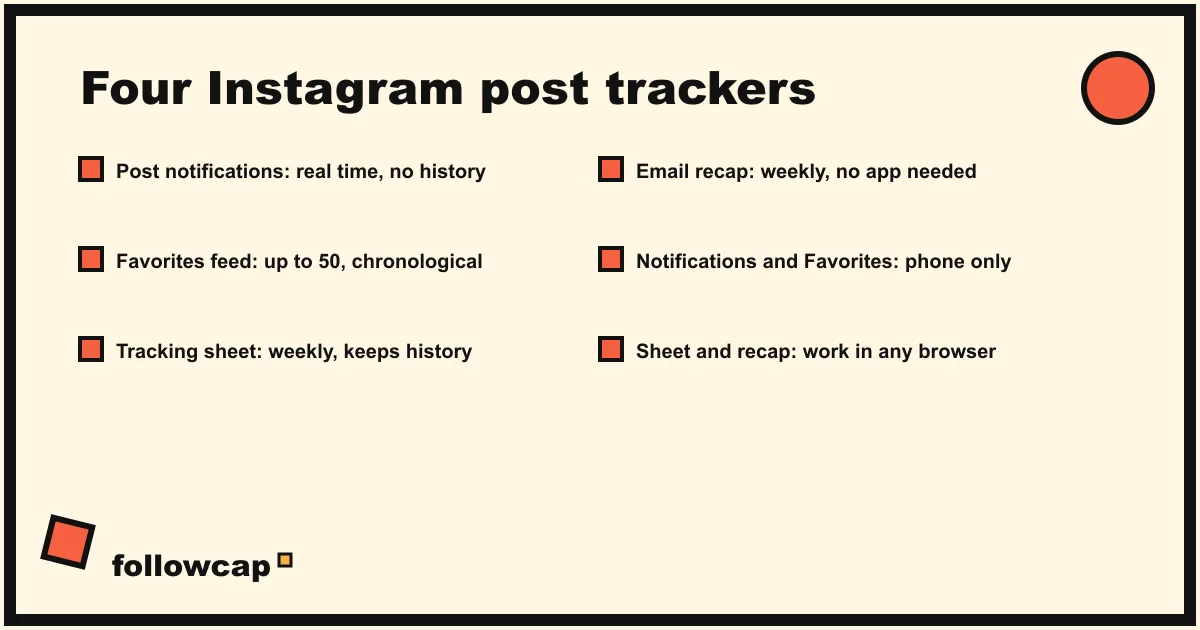
| Method | Effort to set up | Effort to keep | Real time or weekly | Keeps history | Works without the app |
|---|---|---|---|---|---|
| Post notifications | 30 seconds per account | None, but one push per post | Real time | No | No, phone app only |
| Favorites feed | 1 minute for up to 50 accounts | Open the feed when you want to catch up | On demand, chronological | No, scrolls away | No, phone app only |
| Manual tracking sheet | 15 minutes for the template | 10 to 20 minutes a week per 5 accounts | Weekly, or whenever you fill it | Yes, as long as you keep filling it | Yes, instagram.com in a browser plus a spreadsheet |
| Weekly email recap | 2 minutes to type usernames | None | Weekly | Yes, on paid plans | Yes, it arrives by email |
Instagram’s two methods are free, instant and forgetful. The two outside methods are slower and remember. Most people want real time and history at once, which no single free method gives.
Method 1: Post notifications, per account
This is the only true real-time option. Instagram’s help page Turn notifications on or off for someone you follow puts it plainly: “you’ll get a notification every time that they share a post.” The steps in the iPhone and Android apps, as of late 2026:
- Open the account’s profile. You must already follow it.
- Tap the bell (Notifications) at the top right of the profile.
- Toggle Posts, Stories, Reels or Live videos on or off separately.
- For Reels and Live, pick the option you prefer (for example all, or some).
Four things the help page states that matter for tracking. It is per profile: to set it for several people “you’ll have to visit each profile and turn them on or off individually.” The account is not told: “people aren’t notified when you turn notifications on or off for them.” You may get a push for someone who posts “for the first time in a while” even without the toggle. And it is phone only; the help page lists no computer version.
What it cannot do: it keeps no list. A notification you swipe away is gone, and after a week of ten accounts posting daily you have a hundred pushes and no record. It also depends on your phone’s settings and Instagram’s push settings; Instagram notifications not working covers the usual failures. Use it for the handful of accounts where minutes matter.
Method 2: The Favorites feed (and the Following feed)
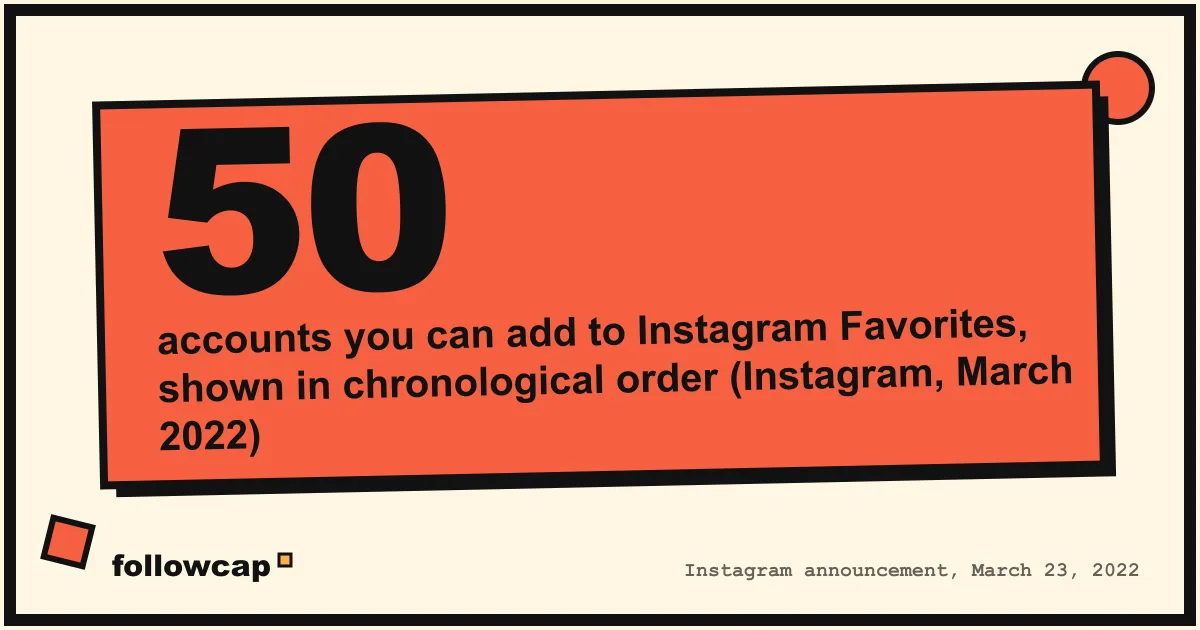
Instagram added Favorites and Following in March 2022, and the announcement is still the clearest description: you can add up to 50 accounts to Favorites, “both Favorites and Following will show you posts in chronological order,” posts from Favorites also “show up higher in your home feed,” and “people are not notified when they are added or removed.”
To add accounts, from the Instagram help page Make posts from certain people appear higher in your feed:
- In the app, tap Instagram at the top of your feed, then Favorites.
- Tap the Favorites list icon at the top right.
- Tap Search, type the username, and tap Add account. Tap Remove to take one off, or Remove all above the list to clear it.
- You can also tap the star above a post from a favorite in your feed, then Manage favorites.
Removing someone from Favorites does not unfollow them. Favorites is only available in the phone apps; the help page marks it as not available on computers.
The Following feed is the wider version: every account you follow, newest first, no suggestions. Instagram’s help page Only see posts and reels from people you follow gives the path: tap Instagram or For you at the top of your feed, then Following; on the website, click Following at the top left. Neither can be made the default, as Instagram chronological feed explains.
As a tracker, Favorites is a reading list, not a log. You open it, you see what the 50 accounts posted since you last looked, in order, and when you close the app the record is your memory. It is the best daily catch-up for people who open Instagram anyway, useless on the days you do not, and it shows no numbers beyond the like count under each post. Instagram Favorites has the details of how it changes your main feed.
Method 3: A manual tracking sheet
A spreadsheet is the only free method that keeps history, and the only one that works entirely in a browser. The template that works for most people has one row per post and these columns:
| Column | What to put |
|---|---|
| Date | When the post went up (shown under the post, or in the post’s own page) |
| Account | The username |
| Link | The post URL |
| Format | Photo, carousel, Reel |
| Hook | The first line of the caption, or the on-screen text |
| Likes | The count under the post, at the time you log it |
| Comments | Same |
| Note | What it was about, and anything to steal |
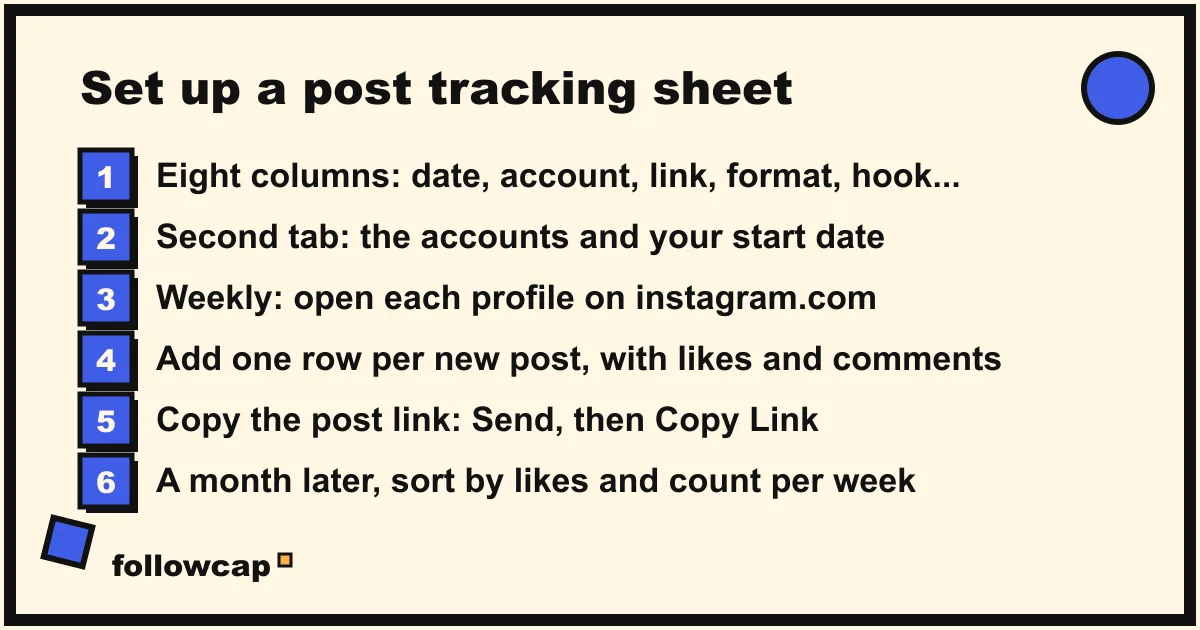
Setting it up takes about 15 minutes:
- Make a sheet with the eight columns above and one tab per month.
- List the accounts in a second tab, with the date you started tracking.
- Once a week, open each account’s profile on instagram.com in a browser and add a row per new post.
- To get a post’s link, copy the address bar, or in the app tap Send below the post and then Copy Link, the method on Instagram’s help page Get a link to a photo or video. Links to a private account’s posts only work for its followers.
- Add a second likes column a week later if you want to see how a post grew after the first day.
Budget 10 to 20 minutes a week for five accounts that post daily, more for Reels, which need opening to read the on-screen hook. The honest cost is not the time but the discipline: most sheets are full for three weeks and empty by week six. How to see all posts from someone on Instagram covers the browser side for the accounts you are logging.
The sheet fixes the gap the other two leave: after a month you can sort by likes, count posts per week, and see which format an account leans on, which is the data behind Instagram competitor analysis.
Method 4: A weekly email recap
The fourth method moves the sheet’s job to a service and the delivery to your inbox. Followcap is our product, so read this as the maker’s description. You type the usernames of public Instagram creator or business accounts, with no Instagram login or password, and every Sunday you get one email with a 30-second summary, the three posts not to miss, a two to three line recap of the best posts from each account with their links, and “what you can apply this week.” Three accounts are free with no card. Premium (€9 a month, 10 accounts) adds weekly numbers per account (posts, likes, comments, best post, follower growth) and a personal archive page, where the history lives; Business Pro (€29 a month, 50 accounts, 3 team users) adds a dashboard with alerts, CSV export and a “you vs your niche” view. Its limits: it is weekly, not real time, so it is the wrong tool for a drop that sells out in an hour; it covers public creator and business accounts only, never private or personal profiles; it sees public posts, likes, comments and follower counts, so no reach, saves, views, Story views, mentions or audience data; the free plan keeps no archive; and paid plans are paid after the 7-day trial, with a 30-day money-back. Instagram to email compares it with the other ways to get Instagram into your inbox, including RSS and Instagram’s own emails.
When each method fits
- You follow a few accounts and need the minute they post. Notifications. A limited drop, a creator whose comments you want to be first in, a client whose posts you amplify. Keep the list under ten or the pushes become noise.
- You open Instagram daily and want a clean catch-up. Favorites, up to 50 accounts, read top to bottom, then close the app.
- You need history and numbers for a handful of accounts and have a weekly slot. The sheet. Agencies tracking a client’s three competitors, a creator studying five peers’ hooks.
- You want the history without the slot, or you want to stay off the app. A weekly recap by email. Also the right pick when you need to brief someone else, since an email forwards and a notification does not.
- The account is a private person, not a public creator or business. Notifications or Favorites, and only if they accepted your follow. Watching a private person’s activity by any other route is not something Instagram allows or any honest tool offers.
Many people combine two: notifications for the three accounts that matter most, a sheet or recap for the twenty they study. Keep up with Instagram without the app is this guide for people leaving the app altogether.
Why not a “post tracker” app
Search results for this query are full of apps and extensions promising to track any account’s posts, likes and followers, and both kinds are a bad trade. The ones that ask for your Instagram password hand your account to a stranger; Instagram’s terms forbid it, and the “features you can’t use” limits in Account Status often follow. The ones that do not ask for a password scrape public pages, break whenever Instagram changes its markup, and put you one policy change from losing the history you paid for. If a tool cannot say in plain words what it sees and what it does not, do not give it an account name, let alone a password.
What no post tracker can show you
- Reach, saves, views and Story views of someone else’s post. They live in the account owner’s Insights; anyone selling them for other accounts is estimating. Instagram reach vs views vs impressions explains each one.
- Stories after they expire, unless the account saves them to a highlight.
- Posts from private accounts you do not follow. Nothing legitimate gets around a private setting.
- Deleted posts. The sheet and the recap keep a line about the post; the post itself is gone.
- Why the algorithm hid a post from you. Favorites and Following bypass the ranking; how the Instagram algorithm works explains it.
FAQ
Can you track someone’s Instagram posts without following them?
Only for public accounts, and only with the outside methods. Post notifications and Favorites require that you follow the account. A public profile’s grid is visible on instagram.com, so a sheet works, and a weekly recap works for public creator and business accounts. A private account’s posts are visible to approved followers only.
Does Instagram notify someone when you turn on post notifications?
No. Instagram’s help page says people are not notified when you turn notifications on or off for them, and the Favorites announcement says the same for adding or removing accounts.
How many accounts can you add to Instagram Favorites?
Up to 50, according to Instagram’s March 2022 announcement. There is no published limit on how many accounts you can turn post notifications on for, but each one is set from its own profile.
Is there a free Instagram post tracker?
Yes. Post notifications and the Favorites feed are built into the app, a spreadsheet is free and keeps history, and the weekly recap described above is free for three public accounts, with history and numbers on the paid plans.
Why am I not getting Instagram post notifications?
Check, in order: the bell on that profile has Posts turned on; Instagram’s notification settings (Settings and activity, then Notifications) allow them; your phone allows Instagram notifications; and you are logged into the same account on the device. The push Instagram sends for an account that posts after a long gap is separate and does not mean the toggle is on.
Can I track Instagram posts from a computer?
Not with notifications or Favorites, which Instagram’s help pages mark as unavailable on computers. The Following feed is on the website (Following, top left), a sheet works from any browser, and an email recap arrives wherever you read email.
Related reading
- How to See Someone’s Activity on Instagram (What Is Public in 2026)
- How to See Someone’s Most Liked Posts on Instagram (2026)
- How to See Saved Posts on Instagram (and Organise Collections)
The bottom line
Instagram gives you two post trackers, both free, both instant, both forgetful: post notifications for the few accounts where minutes matter, and the Favorites feed for up to 50 accounts you catch up on when you open the app. Neither keeps a record, and neither works off the phone. For history, a sheet with one row per post costs 15 minutes a week and nothing else. For the same record without the weekly slot, a weekly email recap such as Followcap, which we make, summarises public creator and business accounts from their public posts, likes, comments and follower counts, once a week, with no login and nothing it cannot see.