Instagram Notifications Not Working? 12 Fixes (iPhone and Android)
Instagram notifications not working? Twelve fixes in order, from Instagram's own pause and sleep mode to Focus, battery settings and background refresh, on both phones.
 Andrea Marino11 min read
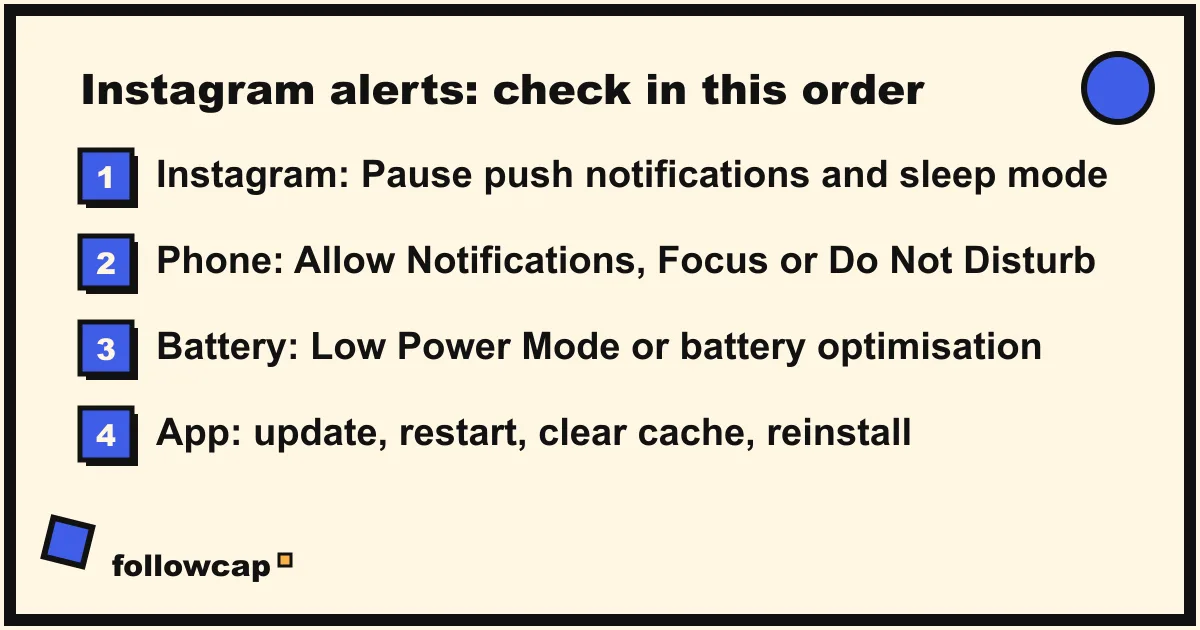
Instagram notifications stop working for one of four reasons: they are paused inside Instagram (Pause push notifications or sleep mode), blocked by the phone (Allow Notifications off, a Focus or Do Not Disturb), held back by a battery setting, or broken by a stale app. Check in that order and most cases are fixed in five minutes without reinstalling anything.
Quick answer: Open Instagram → Profile → ☰ → Settings and activity → Notifications and make sure push notifications are not paused, then Time management → Sleep mode off. On iPhone, check Settings → Notifications → Instagram → Allow Notifications, then Settings → Focus. On Android, check Settings → Notifications → App notifications → Instagram, then the app’s battery usage. Then update and restart.
How do I know where the problem is?
| What you see | Most likely cause | Start at fix |
|---|---|---|
| No Instagram notifications at all, other apps fine | Paused in Instagram, Allow Notifications off, or a Focus allow-list | 1, 6, 9 |
| No notifications from any app | Focus, Do Not Disturb, or a phone-wide setting | 6, 9 |
| Only some types missing (likes but no messages) | A category switched off in Instagram | 3 |
| Late, or only when you open the app | Battery optimisation, Low Power Mode, Scheduled Summary, background data | 7, 8, 10 |
| Missing for one account you follow | Per-account notifications off, or Instagram chose not to send | 5 |
| Stopped after an update | App or OS bug, cache | 11 |
| Everyone is complaining at once | Instagram outage | 12 |
Fixes 1 to 5 are inside Instagram and apply to both phones; 6 to 8 are iPhone; 9 and 10 are Android; 11 and 12 cover everything else.
Fixes inside the Instagram app (both phones)
1. Turn off Pause push notifications
Instagram has its own master switch, and it is the single most common cause. It can be set for 15 minutes to 8 hours, and it is easy to tap by accident.
- Open Instagram and tap your profile picture (bottom right).
- Tap ☰ (top right) to open Settings and activity.
- Tap Notifications.
- At the top, make sure the pause toggle is off. Instagram’s help center calls it “Pause push notifications”; some app versions label it “Pause all”.
2. Turn off sleep mode (formerly Quiet mode)
As of late 2026, Instagram’s help center calls its scheduled do-not-disturb “sleep mode”; older guides and app versions say Quiet mode. It pauses notifications, auto-replies to messages, and sends a summary when it ends.
- Profile → ☰ → Settings and activity.
- Tap Time management.
- Tap Sleep mode (or Quiet mode). Turn the toggle off, or check the days and hours it is scheduled for if you only miss daytime alerts.
3. Check the notification categories
Below the pause toggle, Instagram lists categories: posts, stories and comments; following and followers; messages and calls; live and reels; and more. Each has its own setting, usually Off, From people I follow, or From everyone. If you get likes but no DM alerts, the Messages category is Off or set to a narrower option. For messages, also check that the chat itself is not muted: open it, tap the name at the top, and look for Mute messages.
4. Make sure you are on the right account
Notification settings, pauses and sleep mode are per account. If you manage more than one, long-press your profile picture to see which is active, and repeat fixes 1 to 3 for each.
5. Turn on notifications for the accounts you care about
Instagram does not send a push for every post from everyone you follow. Its help center says an automated system “determines which posts or activity you are notified about”. To be told every time a specific account posts, you turn it on per account:
- Go to the account’s profile (you must follow it).
- Tap Notifications (the bell icon, next to Following on most versions).
- Turn on Posts, Stories, Reels or Live videos, whichever you want.
Instagram’s help page describes no notification to the other account, and nothing in the app shows them. The full walkthrough is in how to get notified when someone posts on Instagram.
Even with the bell on, pushes can be dropped or batched. If you keep missing a few creators or businesses, there is a steadier route, and here we have to be transparent: Followcap is our product. You type the usernames of public creator or business accounts, no Instagram login or password, and every Sunday you get one email with a 30-second summary, the three posts not to miss, a two to three line recap of the best posts from each account with their links, and one thing to apply this week. Three accounts are free with no card. The limits: it is weekly, not a push at posting time; it covers public creator and business accounts only; it cannot show reach, saves, views, watch time or audience data; and the paid plans (Premium at €9 a month for 10 accounts with weekly numbers per account, Business Pro at €29 a month for 50 accounts and a team dashboard) are paid after the 7-day trial, with a 30-day money-back. A Sunday email reaches you even when push notifications fail.
iPhone fixes
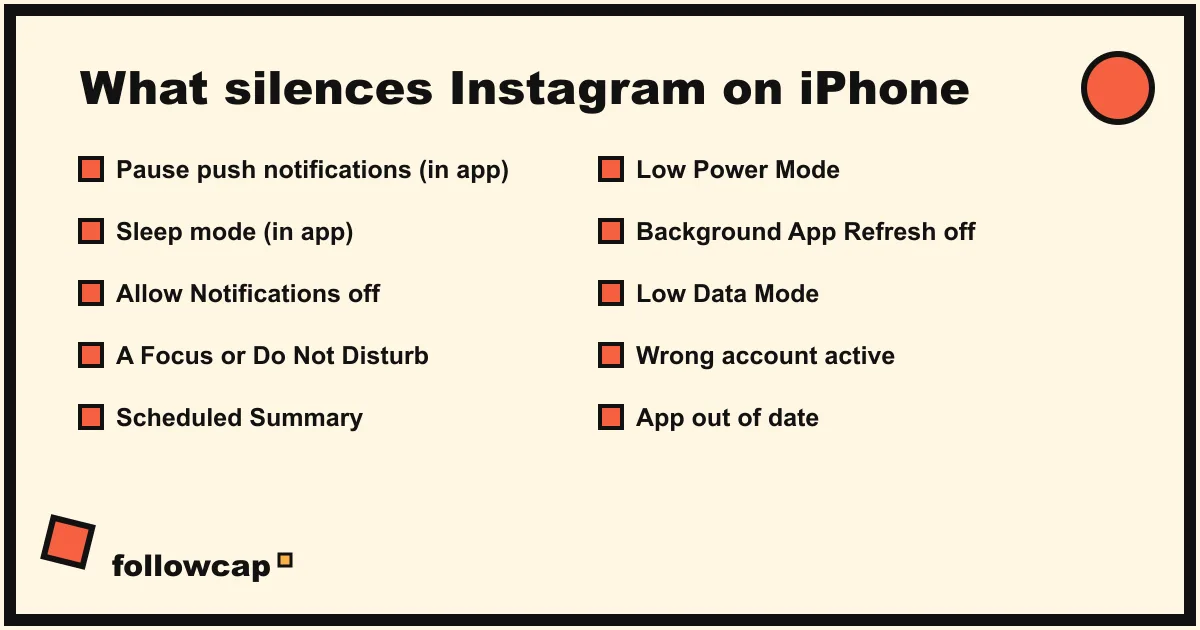
6. Allow Notifications, then check Focus
iOS has two layers. The first is the app’s permission:
- Settings → Notifications (on iOS 18 and later, also Settings → Apps → Instagram → Notifications).
- Tap Instagram in the list of apps.
- Turn on Allow Notifications, tick Lock Screen, Notification Center and Banners, set Sounds to something audible, and make sure Immediate Delivery is selected rather than Scheduled Summary.
The second layer is Focus. Do Not Disturb, Sleep, Work and Personal are all Focuses, and a Focus silences every app not on its allow-list. Apple’s guide:
- Settings → Focus → tap the Focus that is active or scheduled.
- Tap Apps, then under Allow Notifications From tap the add button and pick Instagram. If the Focus uses Silence Notifications From instead, make sure Instagram is not on that list.
- Check the schedule and automations lower on the same screen. A Focus that turns on by location or time is the usual reason notifications vanish for part of the day.
To turn a Focus off right now: open Control Center, tap Focus, then tap the active one.
7. Take Instagram out of Scheduled Summary
Scheduled Summary bundles an app’s notifications and delivers them at set times. If Instagram is in it, your alerts arrive in a batch at, say, 8 AM and 6 PM, which looks exactly like “notifications not working”. Go to Settings → Notifications → Scheduled Summary and either turn it off or switch Instagram off in the apps list.
8. Low Power Mode, Background App Refresh and Low Data Mode
These settings make Instagram’s alerts late or sparse:
- Low Power Mode: Settings → Battery → Low Power Mode off.
- Background App Refresh: Settings → General → Background App Refresh, on at the top and on for Instagram. Users in Apple’s community forums report Instagram alerts arriving only when the app is opened while this is off.
- Low Data Mode: Settings → Cellular → Cellular Data Options → Data Mode; for Wi-Fi, tap the (i) next to your network.
- Cellular access: Settings → Cellular, scroll down and make sure Instagram may use cellular data.
- Screen Time: Settings → Screen Time → App Limits. A reached limit for Social apps blocks Instagram’s notifications until it resets.
Android fixes
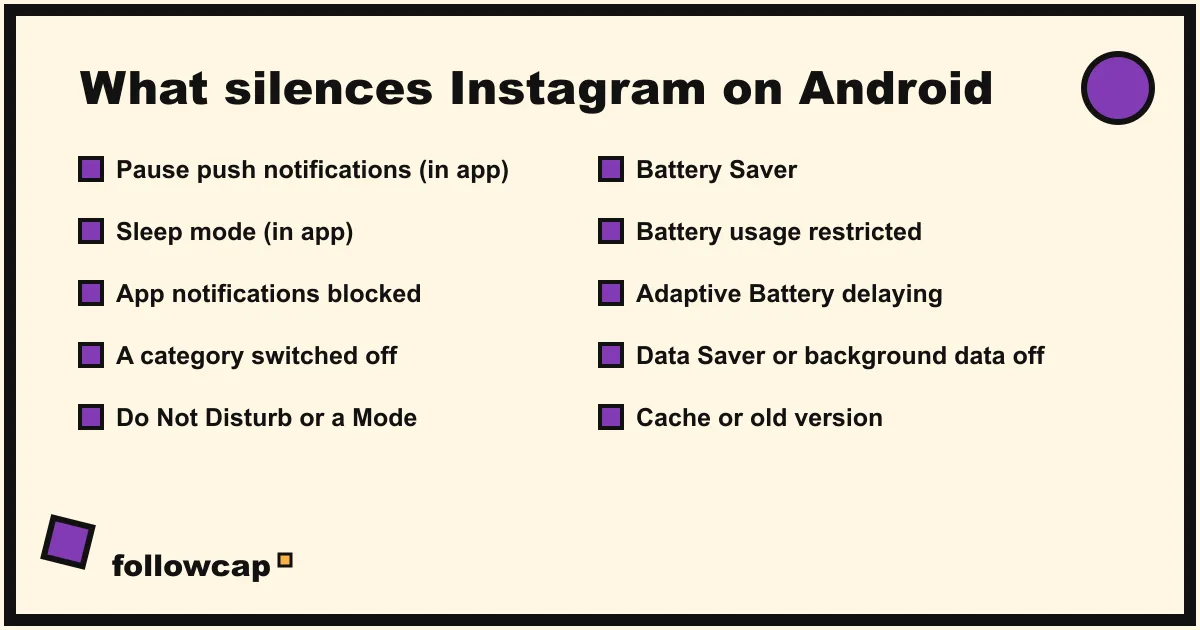
The paths below are Google’s for stock Android and Pixel; Samsung’s are close, and Xiaomi, Oppo and OnePlus add their own battery screens on top.
9. Allow app notifications, categories, and check Do Not Disturb
- Settings → Notifications → App notifications.
- Use the dropdown to show All apps, then tap Instagram.
- Turn the app’s notifications on. Instagram registers several notification categories; tap into them and make sure the ones you want (messages, likes, comments, live) are on, with the pop-up or banner style enabled if you want them over other apps.
- Settings → Notifications → Do Not Disturb (on recent Pixels, Modes). Turn it off, or add Instagram to the apps that can interrupt, and check the schedules.
10. Battery and data restrictions
Google’s own Pixel help says Adaptive Battery and battery optimisation “may reduce performance and delay notifications”. The fix is per app:
- Settings → Apps → See all apps → Instagram.
- Tap App battery usage (on Samsung: Battery). Under Allow background usage pick Unrestricted rather than Optimized or Restricted. On some phones you must turn on Allow background usage before Unrestricted appears.
- Settings → Battery → Battery Saver off, at least to test.
- Settings → Network & internet → Data Saver off, or add Instagram to Unrestricted data. In the app’s info screen, Mobile data & Wi-Fi → Background data on.
Samsung users: Settings → Battery → Background usage limits, and make sure Instagram is not in Sleeping apps or Deep sleeping apps.
Fixes for everything else
11. Update, restart, clear cache, reinstall
In this order, stopping when it works:
- Update Instagram in the App Store or Google Play.
- Restart the phone, not just the app.
- Android only: Settings → Apps → Instagram → Storage & cache → Clear cache (not Clear storage, which logs you out).
- Log out and back in: Settings and activity → scroll to Log out. When you log back in, Instagram asks again whether it may send notifications; answer yes.
- Reinstall. On iPhone, delete the app or Settings → General → iPhone Storage → Instagram → Offload App, then reinstall. Reinstalling resets the phone-level permission, so repeat fix 6 or 9 afterwards.
- Update iOS or Android: Settings → General → Software Update, or Settings → System → Software update.
12. Rule out an outage, then report it
If notifications stopped for many people at once, it is Instagram’s problem. Instagram has no public status page for the consumer app; the practical check is a third-party site such as Downdetector. If everything above is set correctly and it still fails, report it: Settings and activity → Help → Report a problem, and say which fixes you have already checked.
What if it still does not work?
- Notifications work, but only when the app is open. Background delivery is being killed. Go back to fix 8 (iPhone) or 10 (Android), and on Android look for a manufacturer-specific “auto-start” or “app launch” permission for Instagram.
- The bell is on for an account and you still miss its posts. Instagram’s notification system decides which posts to push; the bell is a request, not a guarantee. Add the account to Favorites so its posts surface higher in Feed (Instagram Favorites explains the mechanics), or move to a channel the app does not control, such as the weekly email in fix 5 or the options in Instagram to email.
The opposite problem, too many notifications, uses the same menus: how to mute someone on Instagram covers muting posts, stories and messages per account without unfollowing.
FAQ
Why am I not getting Instagram notifications even though they are turned on?
Because “turned on” has three layers, and one of the other two is off: Instagram’s own pause or sleep mode (fixes 1 and 2), the phone’s permission for the app (fixes 6 and 9), or a Focus, Do Not Disturb or battery restriction that silences or delays the app (fixes 6, 8 and 10). The in-app pause is the most common.
Why do Instagram notifications only show up when I open the app?
Background delivery is being blocked. On iPhone, check Low Power Mode, Background App Refresh and Low Data Mode (fix 8) and Scheduled Summary (fix 7). On Android, set Instagram’s battery usage to Unrestricted and turn off Data Saver for it (fix 10). Manufacturer “sleeping apps” lists are a frequent culprit on Samsung.
Why am I not getting Instagram DM notifications?
Check the Messages category in Instagram’s notification settings (fix 3), then that the specific chat is not muted. Sleep mode (fix 2) auto-replies to messages and withholds their notifications until it ends.
Why do I not get post notifications from an account I turned them on for?
The bell asks Instagram to notify you; its notification system still decides what to send and may batch or skip. Confirm the bell options are on (fix 5), that the “posts, stories and comments” category is on (fix 3), and that the phone is not delaying the app (fixes 8 and 10). For accounts you must not miss, add a channel outside the app.
Related reading
- How to Know if Someone Blocked You on Instagram (2026)
- Instagram Post Tracker: 4 Ways to Track Posts From Accounts You Follow
- Can You See Who Views Your Instagram Profile? (2026 Answer)
The bottom line
Instagram notifications not working comes down to four places: Instagram’s own pause and sleep mode, the phone’s permission and Focus or Do Not Disturb, battery and data restrictions that delay background delivery, and a stale install. Check them in that order, with the per-category and per-account settings in between, and reinstall only at the end. If the real goal is never missing a handful of accounts, remember that the bell is a request Instagram may not honour, and a weekly email such as Followcap, which we make, reaches you whether or not push notifications do.