Instagram Broadcast Channels: Join, Leave and Create One (2026)
Instagram broadcast channels explained: who can create one, how to join and leave, what members can do, notifications, and how a channel compares with Favorites.
 Andrea Marino12 min read
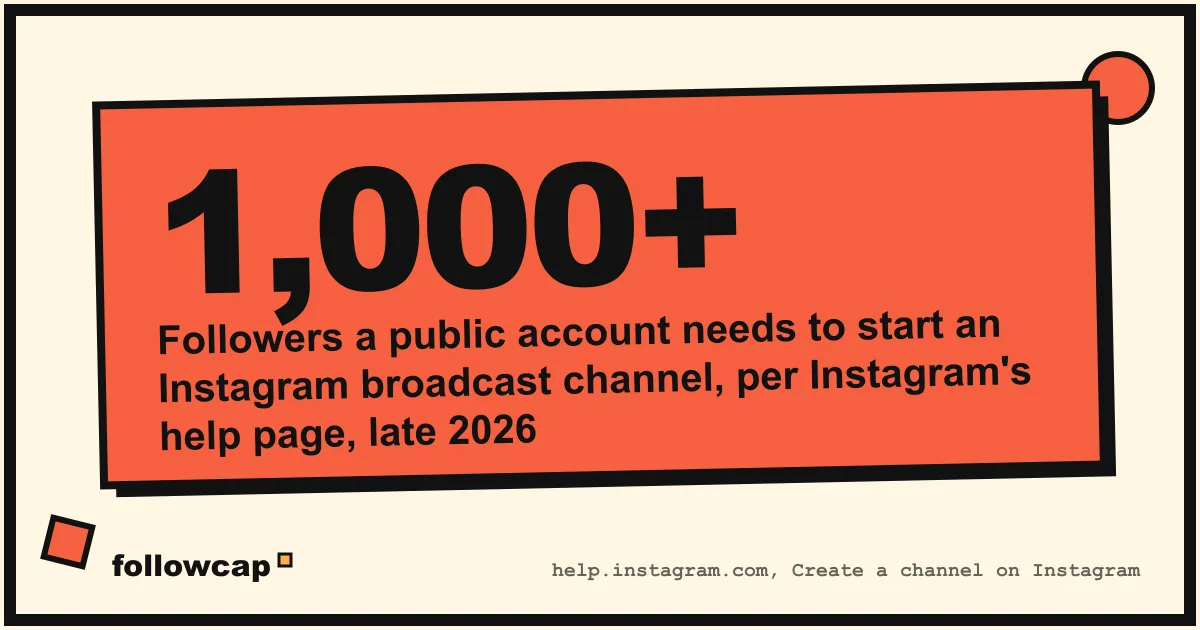
An Instagram broadcast channel is a one-to-many chat in your inbox where only the creator (and their collaborators) can post. Anyone can find and read it, followers can join it, and members can react, reply where allowed and vote in polls, but not send messages. As of late 2026, Instagram says a public account with more than 1,000 followers can create one.
Quick answer: to join, tap the channel link on a creator’s profile or story and tap Join at the bottom. To leave, open the channel in your inbox, tap its name at the top and tap Leave. To create one: Messages → Compose → Create channel → name, audience, end date → Create, then send the first message to notify your followers.
What is an Instagram broadcast channel?
Instagram launched broadcast channels in February 2023 as “a public, one-to-many messaging tool for creators to directly engage with their followers at scale”, in the words of its announcement, and opened them worldwide that June. The idea is a group chat with the replies switched off: the creator posts text, photos, videos, voice notes and polls, and the audience receives them in the Instagram inbox like a direct message.
Three facts from Instagram’s own help pages define what you are joining:
- Channels are public. Instagram’s privacy page for channels says they “can be found and seen by people not in the channel”, are “searchable, visible, and joinable by non-followers”, and stay that way even if the creator switches to a private profile.
- Members cannot post. The help page for creators: “Anyone that joins your channel can react and reply to messages or vote in polls you create, but they cannot send messages.”
- Your activity is public too. The joining page warns that “your reactions, replies and responses to polls in channels are visible to anyone on Instagram” and that “users may be able to see that you’re a member of a channel”.
Channels live in a Channels tab at the top of the Messages inbox. They are app-only: joining “is only available in the Instagram app for Android, iPhone and iPad”, so you cannot join or read a channel on instagram.com.
Who can create a broadcast channel on Instagram?
Most guides still say 10,000 followers and a Creator account. That is out of date. Instagram’s help page on creating a channel, checked in late 2026, says: “Channels can be started by a public account with more than 1,000 followers”, with the caveat that channels “are slowly being released on Instagram and aren’t available to everyone at this time”. The page does not require a Creator or Business account type for a standard channel. Two related conditions are documented:
- Subscriber channels (paid, members-only) require Instagram Subscriptions and “at least one subscriber”. They are discoverable by anyone, but only subscribers who follow you can join.
- Branded content in a channel must use the paid partnership tool, and that tool is “only available for professional accounts”.
If your account is public, above 1,000 followers and the option is still missing, you are on the wrong side of the gradual rollout. There is no waitlist to join and no setting to flip.
How to join an Instagram broadcast channel
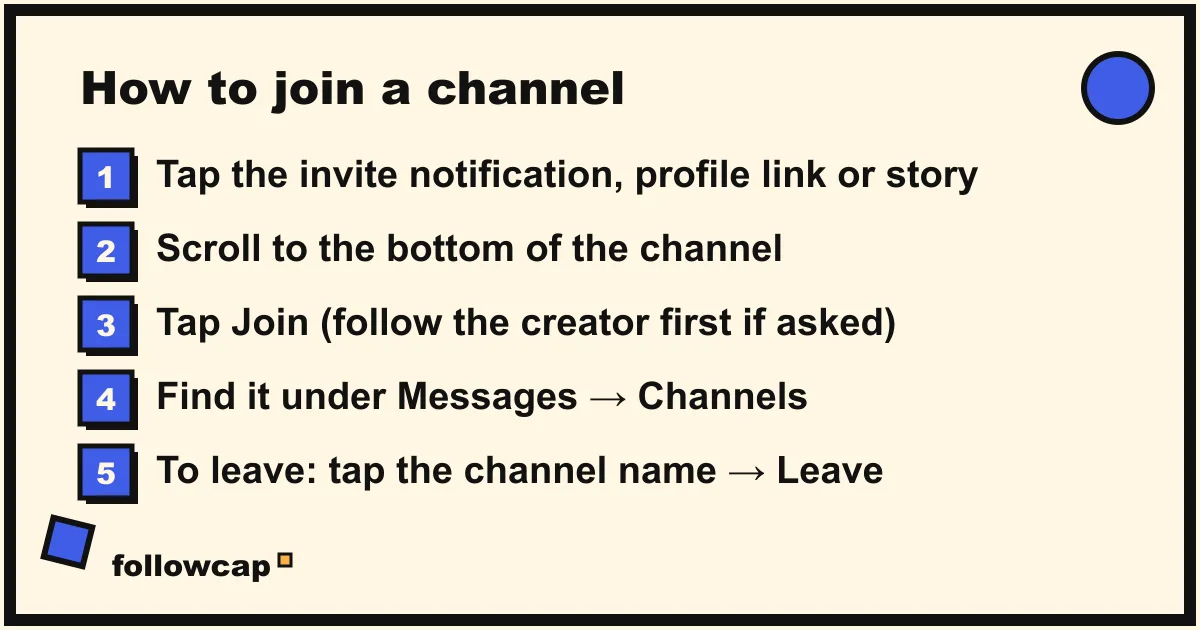
There are four doors into a channel, all documented by Instagram:
- The first-message notification. When a creator you follow sends the first message, you get a notification. Tap it to open the channel, scroll to the bottom, and tap Join.
- The link on their profile. Creators can choose to show the channel on their profile. Tap it, then Join.
- A story. A creator can share the channel, or a single message from it, to a story. Tap the sticker or the message image to open the channel.
- An invite link or QR code. Members and admins can share both. Scan the code with your phone camera or open the link in the app.
Once you join, the channel “will be added to your inbox”, under the Channels tab. If you are not following the creator yet, Instagram asks you to follow first. You can read a channel without joining; joining is what turns on notifications and lets you react and vote.
What members can and cannot do
| Members can | Members cannot |
|---|---|
| Read every message, including the backlog | Send a message of their own |
| React with emoji (the admin chooses which reactions are allowed) | Reply, if the admin has turned replies off |
| Reply to a message, where the admin allows it | Add other people as members |
| Vote in polls, and answer a prompt with text or a photo | Hide their membership from other users |
| Share the invite link, QR code or a message to their story | Keep their reactions, replies or votes private |
| Leave or mute at any time | Change any channel setting |
Prompts work like this: the admin posts a question, members tap Add response on the day it is posted, write or add a photo, and tap Send. “All members can see and upvote your response”, per the help page, and you can delete your own response while the prompt is active.
How to leave a broadcast channel on Instagram
Leaving is silent and immediate; the creator sees their member count drop by one, nothing more.
- Open Messages and tap the Channels tab at the top.
- Open the channel.
- Tap the channel name at the top.
- Tap Leave and confirm. If you do not see it, tap ⋯ and choose Leave.
Some versions also let you swipe left on the channel in the inbox and tap Delete, which removes you as well. One honesty note: Instagram’s help pages do not describe leaving step by step as of late 2026; they only confirm that members “can leave or mute a channel at any time”. If your menu differs, the channel name at the top is still the place to look. You can rejoin any public channel later with the same Join button.
How to mute a channel instead
If the content is fine but the frequency is not, muting keeps you in without the buzz:
- Open the channel and tap the channel name at the top.
- Tap Mute and switch it on.
Instagram’s launch post described a choice between all, some or no notifications for channels, and the June 2023 update said members can “adjust notification settings”; labels vary by version, so look for a notifications row on the same screen. Channel alerts also follow your account-wide message settings, so if DMs are muted, channels are too. For the general case, see why Instagram notifications stop working.
How to create a broadcast channel on Instagram
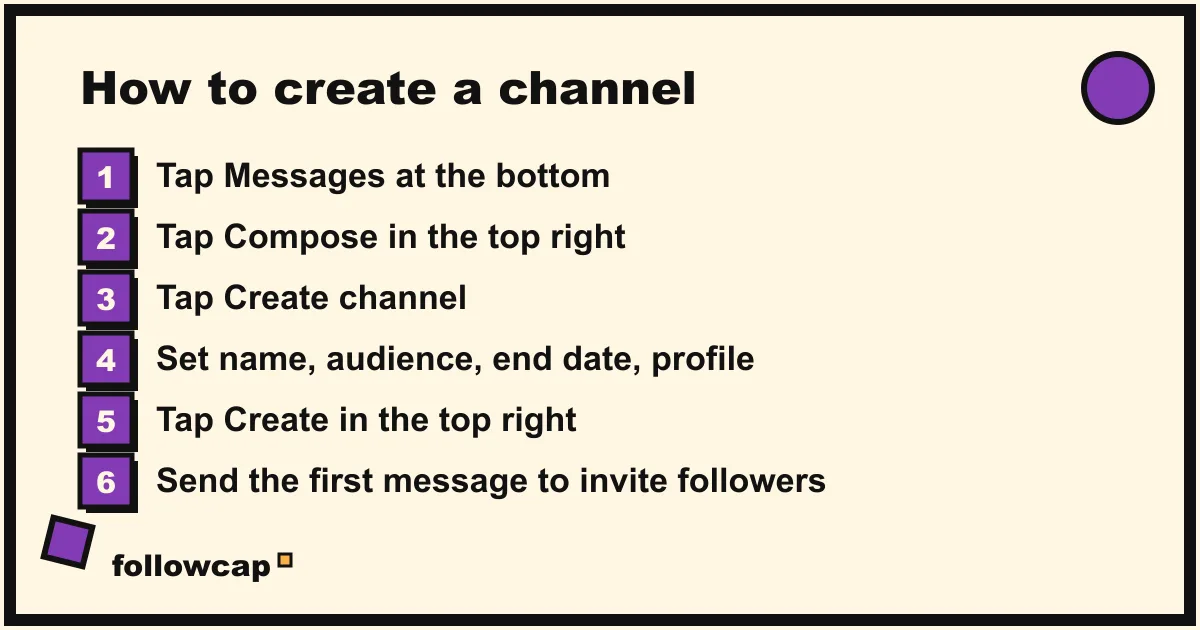
The steps below are copied from Instagram’s help page for the Android and iPhone apps.
- Tap Messages at the bottom.
- Tap Compose in the top right.
- Tap Create channel. On this screen you:
- enter a channel name;
- choose an audience (all followers, or subscribers if you have Subscriptions);
- choose when your channel ends (never, or a date);
- choose whether to show your channel on your profile.
- Tap Create in the top right.
- Send the first message. This is the step people skip: “When you send the first message in your channel, all of your followers will receive a notification inviting them to join.” Until then, the channel is a draft nobody can see.
You will find your channels later under Messages → Channels at the top.
How to invite people
Beyond the automatic first-message notification, the help page lists four ways:
- Share the invite link. It cannot be turned off, but you can reset it at any time.
- Add the channel to your stories. Admins can share the channel itself to a story.
- Share a message to a story. Tap and hold a message, then Share to story; anyone who taps the image lands in the channel.
- Share a QR code. Tap the channel name at the top, then QR code.
What admins and collaborators can do
As the creator you are the admin automatically. Instagram’s admin page lists the powers: change the name or theme, share to your story, invite or remove collaborators (other accounts who can post like you), invite or remove moderators (up to 4, who can send and remove messages), unsend your own messages, manage which reactions are allowed and whether members can reply, start a live video or a prompt, and delete the channel. Admin controls are app-only.
Two warnings for anyone invited as a collaborator: the admin is notified whether you accept or decline, and “messages you send in a channel are discoverable by anyone on Instagram, even if your account is private”. If you run Instagram Subscriptions, Compose also offers Subscriber broadcast channel; only subscribers who follow you can join it, it can hold up to 1 million people, and its photo cannot be changed after creation.
Broadcast channel vs Favorites vs post notifications
If your reason for joining a channel is “I do not want to miss this creator”, there are three tools, and they do different jobs.
| Broadcast channel | Favorites | Post notifications | |
|---|---|---|---|
| Who controls it | The creator, and only if they run one | You | You |
| What you get | Messages the creator writes for the channel, as DMs | Their posts ranked higher in Home, plus a chronological Favorites feed | A push alert for each new post, Reel or story you choose |
| Does it cover posts? | Only if the creator shares them into the channel | Yes | Yes |
| Does the creator know? | Yes, you appear in the member list | No | No |
| Is your activity public? | Reactions, replies and poll votes are visible to anyone | Nothing is visible | Nothing is visible |
| Works on the web? | No, app only | No, app only | No, app only |
| Limit | Up to 1 million members per channel | 50 accounts | No stated limit, one toggle per account |
Practical reading: a channel is the creator’s newsletter inside Instagram, useful when they post things there that never reach the feed. Favorites fixes what you see of their posts. Post notifications fix whether you hear about them. None of the three exists outside the app.
Keeping up with creators who do not run a channel
Most accounts never start a channel, and for the ones that do, a channel is a second stream to read on top of the posts. If the goal is to keep up with a short list of public creators or businesses without living in the inbox, Followcap is the tool we make for it, so read this as the maker’s description. You type the usernames of public creator or business accounts, with no Instagram login, and every Sunday you get one email with a 30-second summary, the three posts not to miss, a two to three line recap of the best posts from each account with their links, and “what you can apply this week”. Three accounts are free with no card; Premium (€9 a month, 10 accounts) adds weekly numbers per account (posts, likes, comments, best post, follower growth) and an archive page; Business Pro (€29 a month, 50 accounts, 3 team users) adds a monitoring dashboard with alerts and a monthly PDF report. The limits are real: it is weekly, not real time; it covers public creator and business accounts only; it does not see broadcast channel messages, stories, reach, saves, views or audience data, so a creator’s channel-only announcements will not be in it; and paid plans are paid after the 7-day trial, with a 30-day money-back. For the full menu of options, see how to keep up with Instagram without the app.
What to do if broadcast channels are not working
- No “Create channel” option. Check that your account is public and above 1,000 followers, then update the app. If both are true, Instagram’s own line applies: channels “aren’t available to everyone at this time”. There is no application form.
- Followers say they never got the invite. You have not sent the first message yet, or they have message notifications muted. Share the invite link to a story as a backup.
- Join button missing. You are on the web or in an old app version. Channels are app-only.
- A blocked account is in the channel. Blocking does not remove either of you from a shared channel; Instagram notifies you before you enter one that contains someone you blocked.
- Reply option missing. The admin has turned replies off. Reactions and polls still work.
FAQ
How many followers do you need for an Instagram broadcast channel?
More than 1,000, on a public account, according to Instagram’s help page as of late 2026. The 10,000 figure in older guides is out of date. Even above the threshold, the feature is “slowly being released” and some accounts do not have it yet.
Can people see if you join a broadcast channel?
Yes. Instagram says users “may be able to see that you’re a member of a channel”, the member list is visible at the bottom of the channel, and your reactions, replies and poll votes are visible to anyone on Instagram.
Can members reply in a broadcast channel?
Members can react, vote in polls and answer prompts. They can reply to a message only if the admin has allowed replies for that channel; they can never start a message of their own.
Does the creator know when you leave a broadcast channel?
There is no notification. The member list and count update, so a creator who looks closely could notice, but Instagram does not tell them.
What is the difference between a broadcast channel and a group chat?
A group chat is private and everyone can post. A channel is public, discoverable by anyone, managed by an admin, and only the admin, collaborators and moderators can post; members react, reply where allowed and vote. Both are free; the only paid variant is a subscriber channel, a benefit of a paid Subscription to that creator.
Related reading
- How to See Saved Posts on Instagram (and Organise Collections)
- How to See Someone’s Activity on Instagram (What Is Public in 2026)
- How to See Someone’s Most Liked Posts on Instagram (2026)
The bottom line
Instagram broadcast channels are public, one-way chats in the inbox: a public account with more than 1,000 followers can create one, followers join with one tap, and members can react, reply where allowed and vote in polls, with all of that visible to anyone on Instagram. Leaving is a tap on the channel name, muting is next to it, and neither sends the creator a notification. A channel is the creator’s own extra stream, not a way to see their posts, so pair it with Favorites or post notifications inside the app, and for the public accounts you want to keep up with without the app at all, use a weekly email like Followcap, which we make.